Category: Player Networks

Athletics Radial Axis Network

Our next entry in the MLB Radial Axis Series features the Athletics in all their iterations, from Philadelphia to Kansas City to Oakland, and now Sacramento. In total, we’re talking about 125 seasons from 1901 through 2025. We’re going to walk through some highlights from the network, and then provide the link so you can explore it in detail. For some background on how the network graphs work, select this link – Anatomy of MLB radial axis graphs.

The Athletics Network

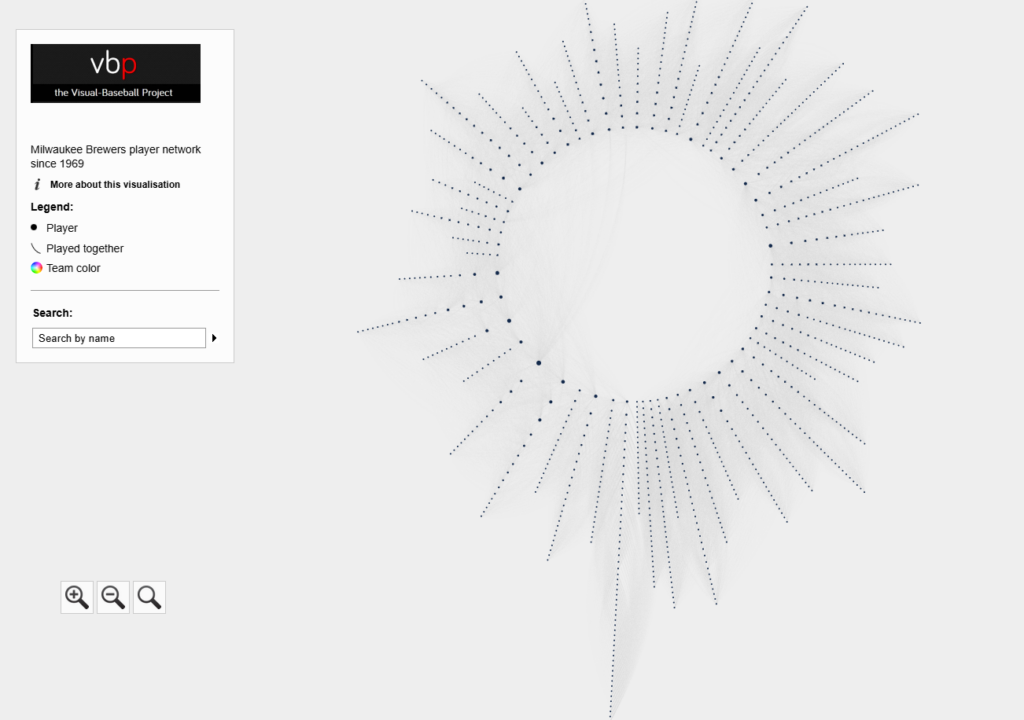
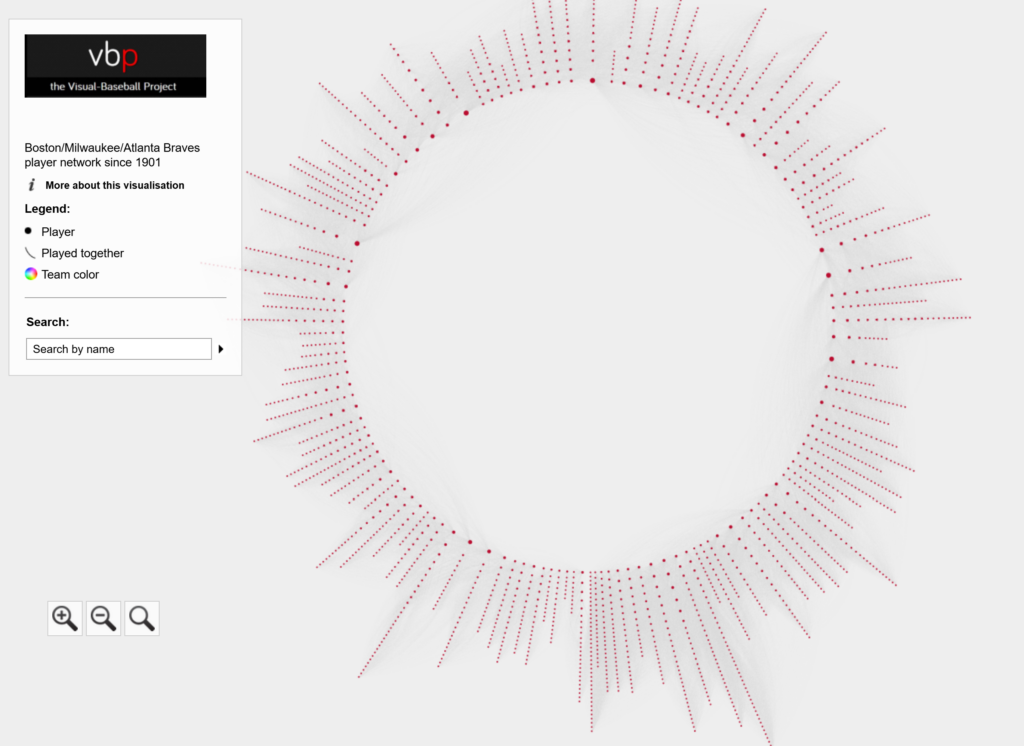
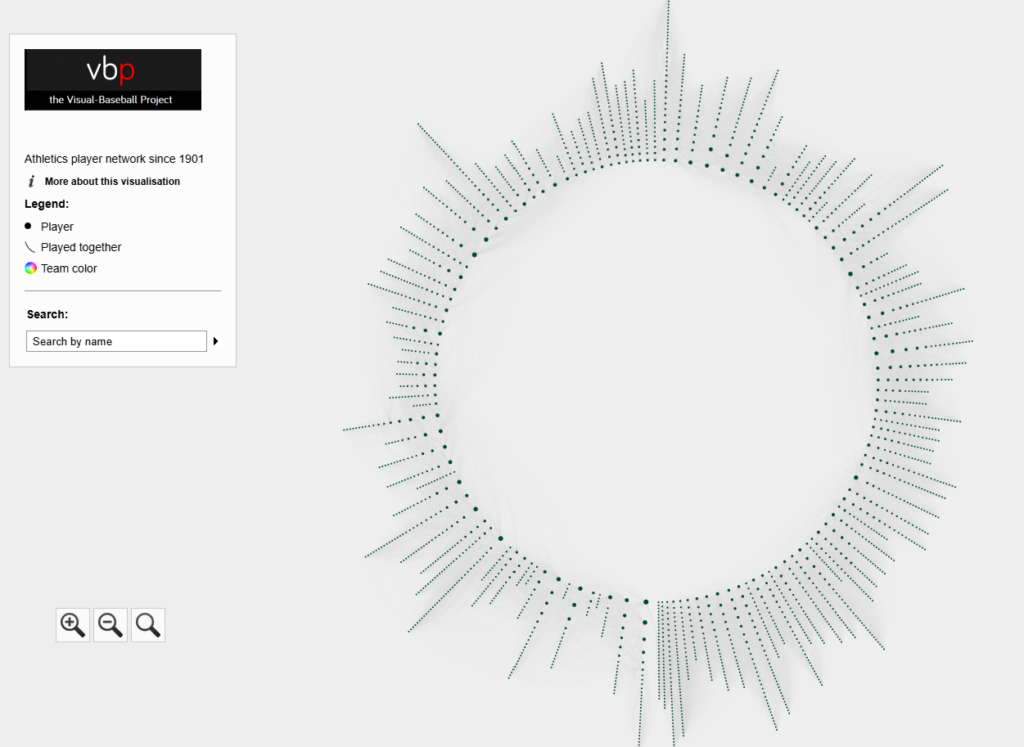
The Athletics’ radial axis network reflects the connections among all players who spent time with the franchise from 1901 to 2025. The 1901 season is found at the bottom center of the graph. Subsequent seasons are arranged clockwise, eventually returning to the bottom center with the 2025 season. Player nodes are sized by the number of seasons spent with the team, and the gray lines between nodes reflect connections to other players. The interactive version of the network is here – Athletics Network.

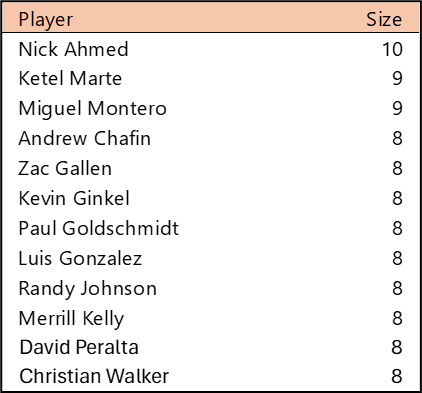
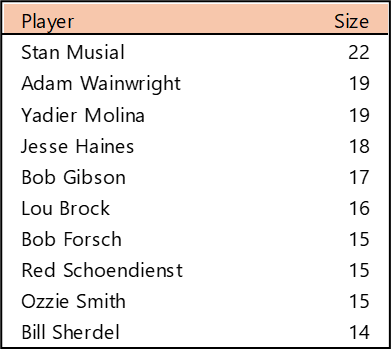
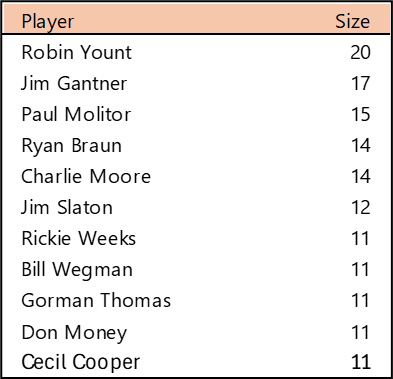
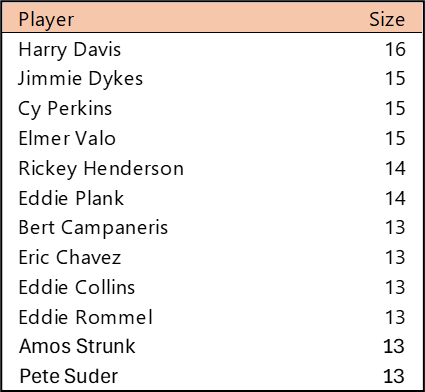
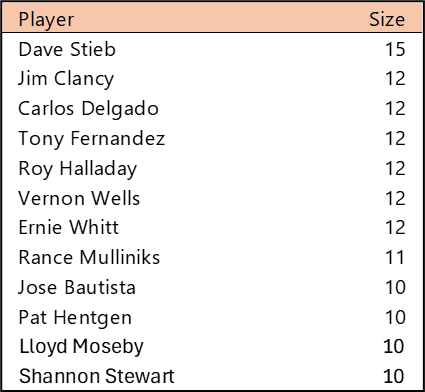
Top 10 by Seasons Played (Size)

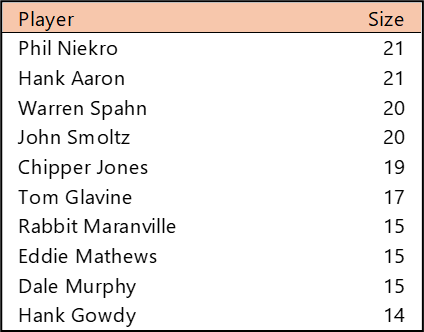
Harry Davis played 16 seasons at the turn of the 20th century for the Philadelphia-based Athletics to claim the longevity title. Given Connie Mack’s propensity for breaking up his A’s teams when stars became too expensive (Jimmie Foxx, Lefty Grove, Eddie Collins, etc.), we don’t see many stars with an entire career spent with the A’s. The Oakland edition of the Athletics features a few names, including Rickey Henderson (1979-84, 1989-93, 1994-95, 1998), Bert Campaneris (1964-76), and Eric Chavez (1998-2010).

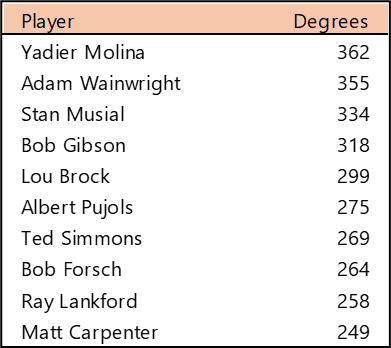
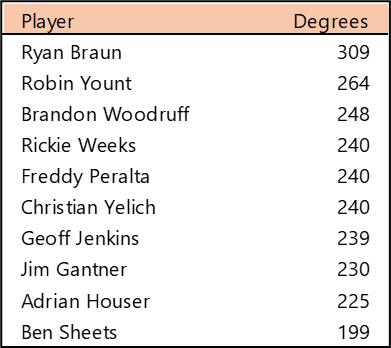
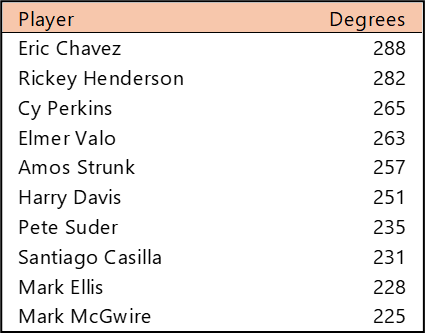
Top 10 by Degree (the number of connections)

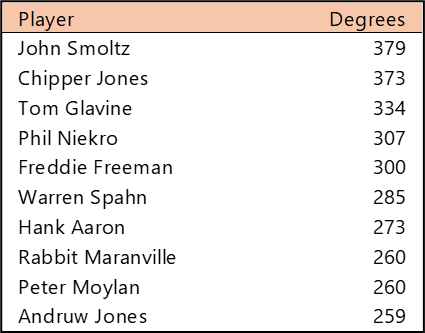
Eric Chavez tops the list for the most teammates, followed closely by Rickey Henderson. Unlike most original franchises (dating to 1901), the Athletics typically failed to keep players for their entire career; thus, there are no players with 300 or more connections.

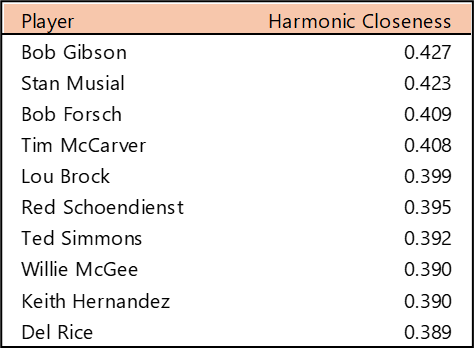
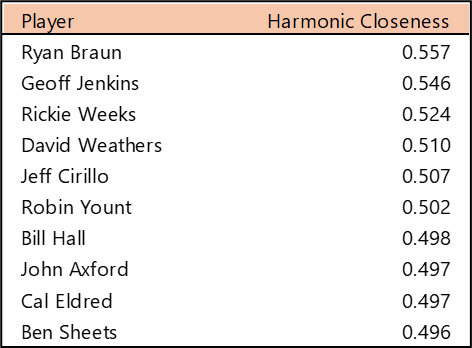
Top 10 by Harmonic Closeness Centrality

With Harmonic Closeness Centrality, we measure how closely an individual player is related to all other players in the network. Rickey Henderson tops this list, due to both his 14 years with the team and his multiple stints. Several other players are prominent due to the period when they played for the A’s. Mark McGwire, Tony Phillips, Joe Rudi, and Reggie Jackson all played during the 1970s or 1980s, placing them in close proximity to both older and more recent team members.

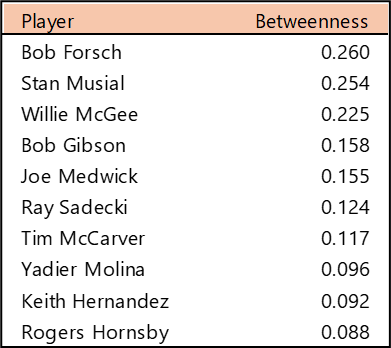
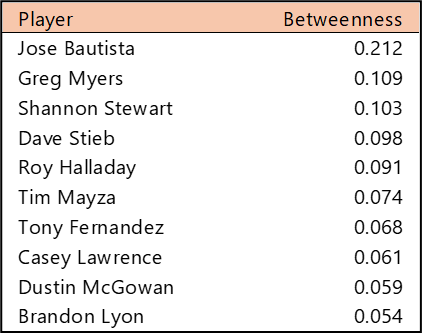
Top 10 by Betweenness Centrality

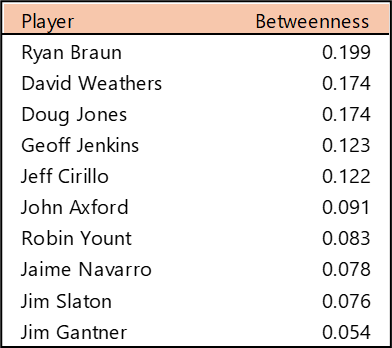
Betweenness Centrality measures which players rank highest for the ability to connect to all other players. Reggie Jackson (1967-75, 1987), Al Simmons (1924-32, 1940-41), and Art Ditmar (1954-56, 1961-62) top the rankings for this measure. Interestingly, all three had Athletics stints at the start and end of their careers. This places them in the unique position of having at least two distinct sets of teammates as direct connections.

Summary

That’s it for our overview of the Athletics network. Be sure to visit the interactive graph to discover additional insights about the Athletics players over the last 125 seasons. We’ll be back shortly with our next franchise entry. Thanks for reading!
Astros Radial Axis Network

Our next entry in the MLB Radial Axis Series features the Astros, who started out as the Colt .45s in 1962. We’re going to walk through some highlights from the network, and then provide the link so you can explore it in detail. For some background on how the network graphs work, select this link – Anatomy of MLB radial axis graphs.

The Astros Network

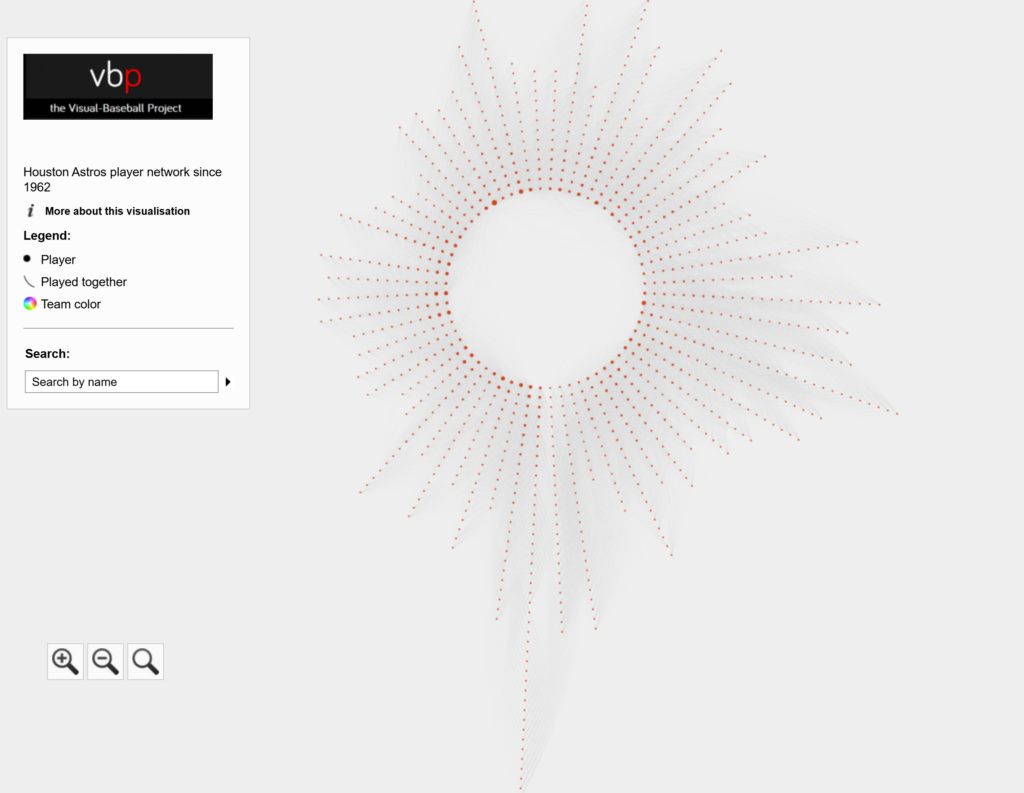
The Astros’ radial axis network reflects the connections between all players who spent time with the franchise between the 1962 and 2025 seasons. The 1962 season is found at the bottom center of the graph. Subsequent seasons are arranged clockwise, eventually returning to the bottom center with the 2025 season. Player nodes are sized based on the number of seasons spent with the team, and the gray lines between nodes reflect connections to other players. The interactive version of the network is here – Astros Network.

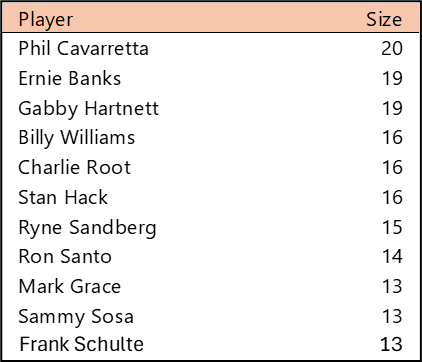
Top 10 by Seasons Played (Size)

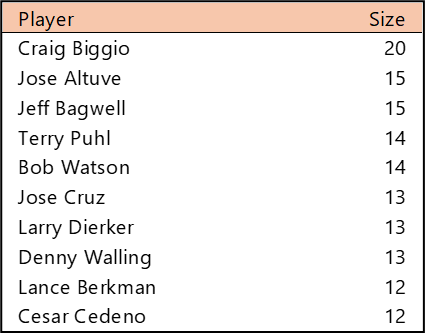
Craig Biggio sits alone at the top of the Astros seasons played list with 20, trailed by Jose Altuve (now in season 16) and Jeff Bagwell. Other long-tenured Angels legends include Terry Puhl, Bob Watson, Jose Cruz, Larry Dierker, and Denny Walling.

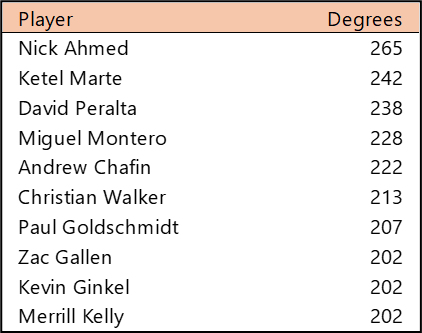
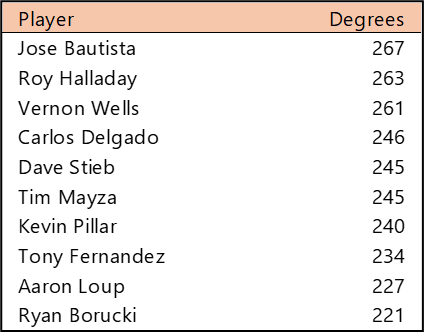
Top 10 by Degree (the number of connections)

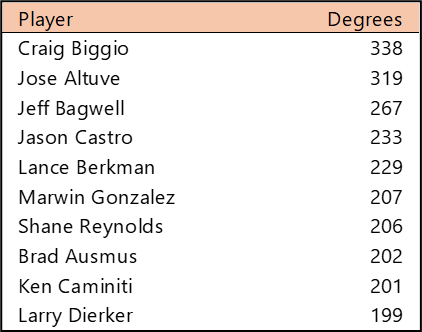
Craig Biggio again tops the degrees ranking, having been on an Astros roster with 338 different teammates. Jose Altuve is likely to claim the top spot eventually, while Jeff Bagwell is a distant third. Jason Castro had two stints (2010-16, 2021-22) with Houston, leading to a large number of different teammates.

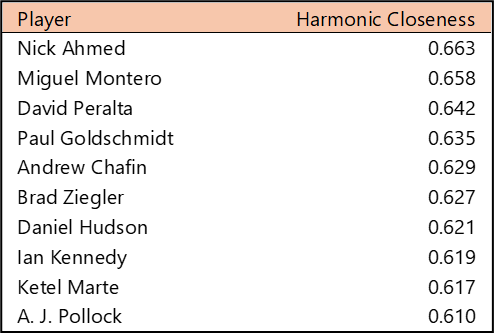
Top 10 by Harmonic Closeness Centrality

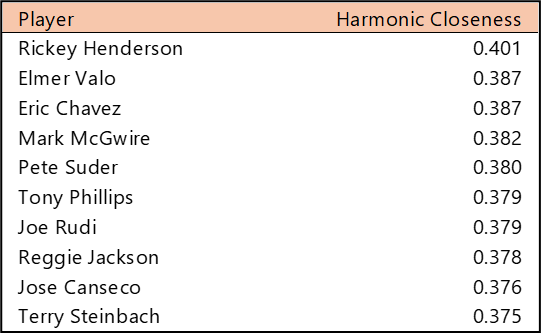
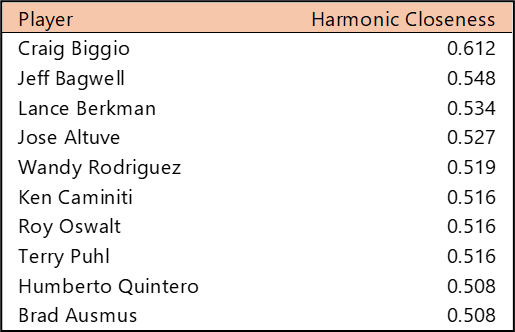
With Harmonic Closeness Centrality, we’re measuring how strongly an individual player is related to all players in the network. The Astros famed Killer B’s dominate this measure. Biggio, Bagwell, and Berkman all rank at the top of the most well-connected players in Astros history, with Biggio the clear leader. Jose Altuve and Wandy Rodriguez are also very favorably positioned within the network, along with other Astros legends like Ken Caminiti, Roy Oswalt, and Terry Puhl.

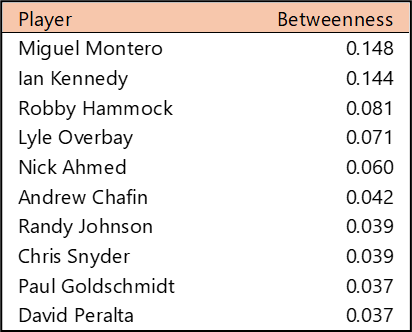
Top 10 by Betweenness Centrality

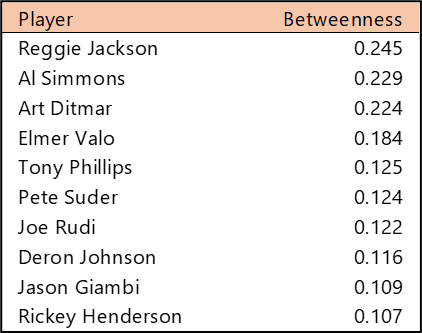
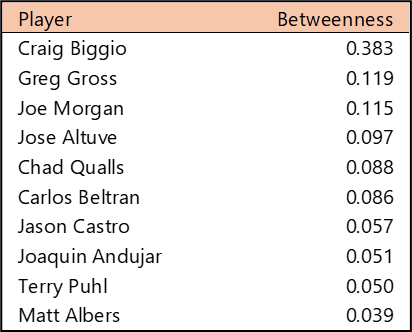
Betweenness Centrality measures which players are most central to the network. Often, this results in players who played in the middle period of a franchise’s history, or players with multiple stints with one franchise. Craig Biggio is unsurprisingly at the top of this measure, given his 20 seasons with the team between 1988 and 2007. If we wanted to connect to every Astro in the network, our most direct path is clearly through Biggio, followed by Greg Gross and Joe Morgan. Gross played just five seasons with the Astros, four to start his career and then one for his final MLB season. This split tenure gives him a unique position within the Astros network, connecting to teammates from 1973-76 and again in 1989.

Summary

That’s it for our overview of the Astros network. Be sure to visit the interactive graph to discover additional insights about the Astros players over the last 64 seasons. We’ll be back shortly with our next franchise entry. Thanks for reading!
Anatomy of MLB Radial Axis Graphs

This post will introduce you to an upcoming series of MLB radial axis graphs, where we examine the connections between all players at a franchise level. The plan is to feature two teams per week, with an overview of each graph’s structure and highlights within the graph. Each graph will have the same general appearance and functionality; only the underlying data and team color will change. Every post will provide a link to the interactive graph, allowing you to explore freely. One caveat – the graphs are best explored on tablets, laptops, or large monitors; phone screens will not work well.

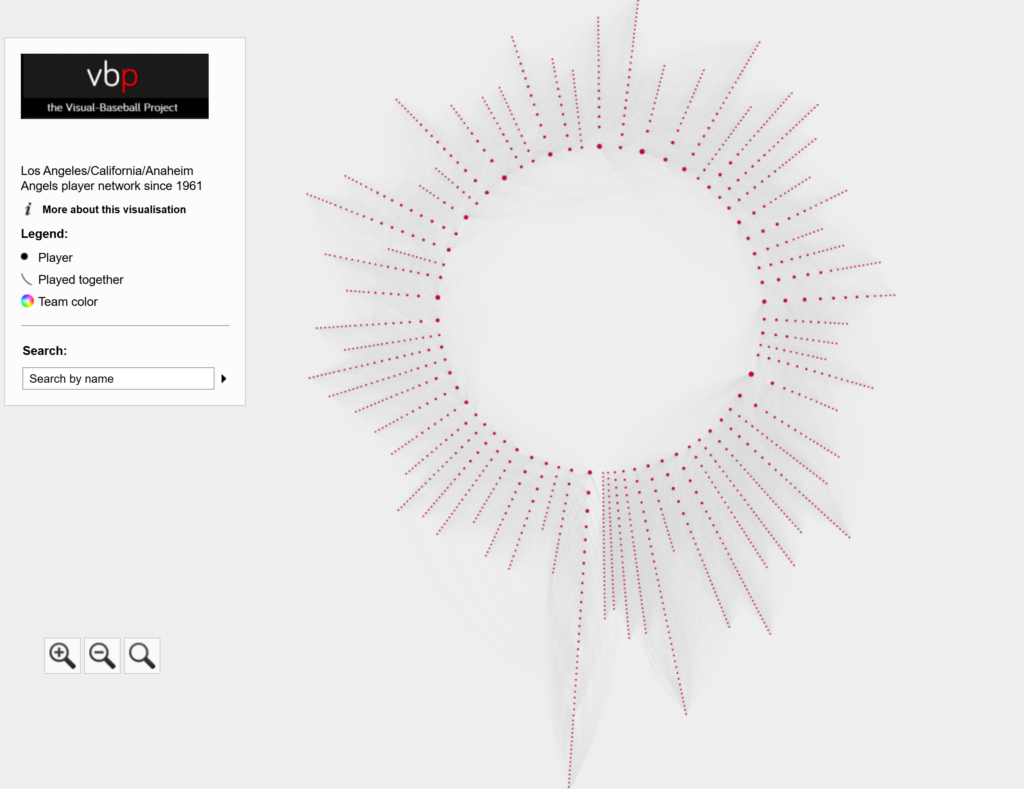
Let’s begin with the general concept behind the radial axis approach. I selected this layout (using Gephi) to provide an intuitive graph that is both easy to understand and navigate. Using a radial axis graph, we can arrange the data points (nodes) based on the first season a player was with a franchise (e.g., 1964). Players starting in the same season will be arranged in a radian originating near the center of the display. In addition, the players’ nodes are then arranged based on the number of seasons spent with a franchise. Let’s have a quick look, using the Anaheim Angels graph:

There’s a lot going on here, but we’ll explain it in the next few sections. First, you can see the structure of the graph, with each season radiating out from the center. The first season for each franchise is located near the bottom center; this will be the longest radian, as every player is new to the team that season. For the Angels, that season is 1961. The seasons are arranged clockwise from there, eventually wrapping back around to the 2025 season:

The title, legend, and search function are all contained within a static window to the left of the graph. This window provides simple information about the graph; selecting the More about this visualization option opens a new window that provides greater detail about the graph:

Specific players and their connections can be found using the Search function:

Each node in the graph represents a specific player. We can hover over any node to see who the player is, and we can click on any node to find out more information about that player, in this case Jered Weaver:

We now have detailed information about Jered Weaver in the Information Pane to the right of the graph. Later in this post, we’ll walk through the graph statistics, but for now, we can see the first and last seasons played, the size (# of seasons), and at the bottom, all of the players Weaver played with for one or more seasons. Each of these Connections can be clicked on to update the display. The size attribute is reflected in the graph; players with more seasons will have larger nodes than those with just a season or two.

The thin gray lines between graph nodes represent the connections between players. The Connections section contains this information, as we just discussed. As you might expect, these connections (edges) aid us in viewing the overall structure of the graph.

Network graph analysis uses several calculations to help summarize a graph. These measures can seem rather technical and difficult to interpret. We will simplify things in our upcoming posts for each franchise. In this section, I’ll provide a simple overview of each metric displayed in the Information Pane.

The Degree statistic measures the number of connections a selected player has. Typically, players with lengthy careers have the most connections, but players with multiple shorter stints may also have high degree numbers.

The Eccentricity statistic measures the number of steps required to connect to the most distant node in the graph. This number will be higher (on average) for original franchises dating to 1901.

The Closeness Centrality statistic measures the relative importance (from 0 to 1) of any player within the network. Higher scores indicate an individual who is close to many other players in the network. In practical terms, players who were with a franchise near the middle of all seasons will tend to have higher scores; they may connect to players from both earlier and later eras.

The Betweenness Centrality statistic measures how important an individual node is (from 0 to 1) for traversing the network. Players with many connections are most likely to score high on this statistic.

The Harmonic Closeness Centrality statistic also measures the relative importance of a player (from 0 to 1) in the network. It is a variation on the original Closeness Centrality statistic. We will use this version in our series of franchise summaries.

That’s it for our overview of MLB radial axis graphs. We’ll start with individual franchises (alphabetized by name) in a couple of days, and will include summaries and a link to the interactive graph. As always, thanks for reading!
Updating Player Networks – Part 3

In Part 1 of this series, we looked at how to generate node and edge data for all players within a single franchise’s history. Part 2 examined how we could take that data and create a network using Gephi, adding graph statistical measures along the way. In this, the final part of the series, our focus is on moving the graph beyond Gephi and on to the web, where users can interact with the data and interrogate the player network using sigma.js software. So let’s pick up with the process of moving the network from Gephi  to sigma.js.

Recall our basic network structure in Gephi, which looks like this:

One of our goals when we export the graph to the web is to enable user interaction, so the above graph becomes a bit less intimidating. As a reminder, this is at most a moderate sized network; the need to provide interactive capabilities becomes even greater for large networks.

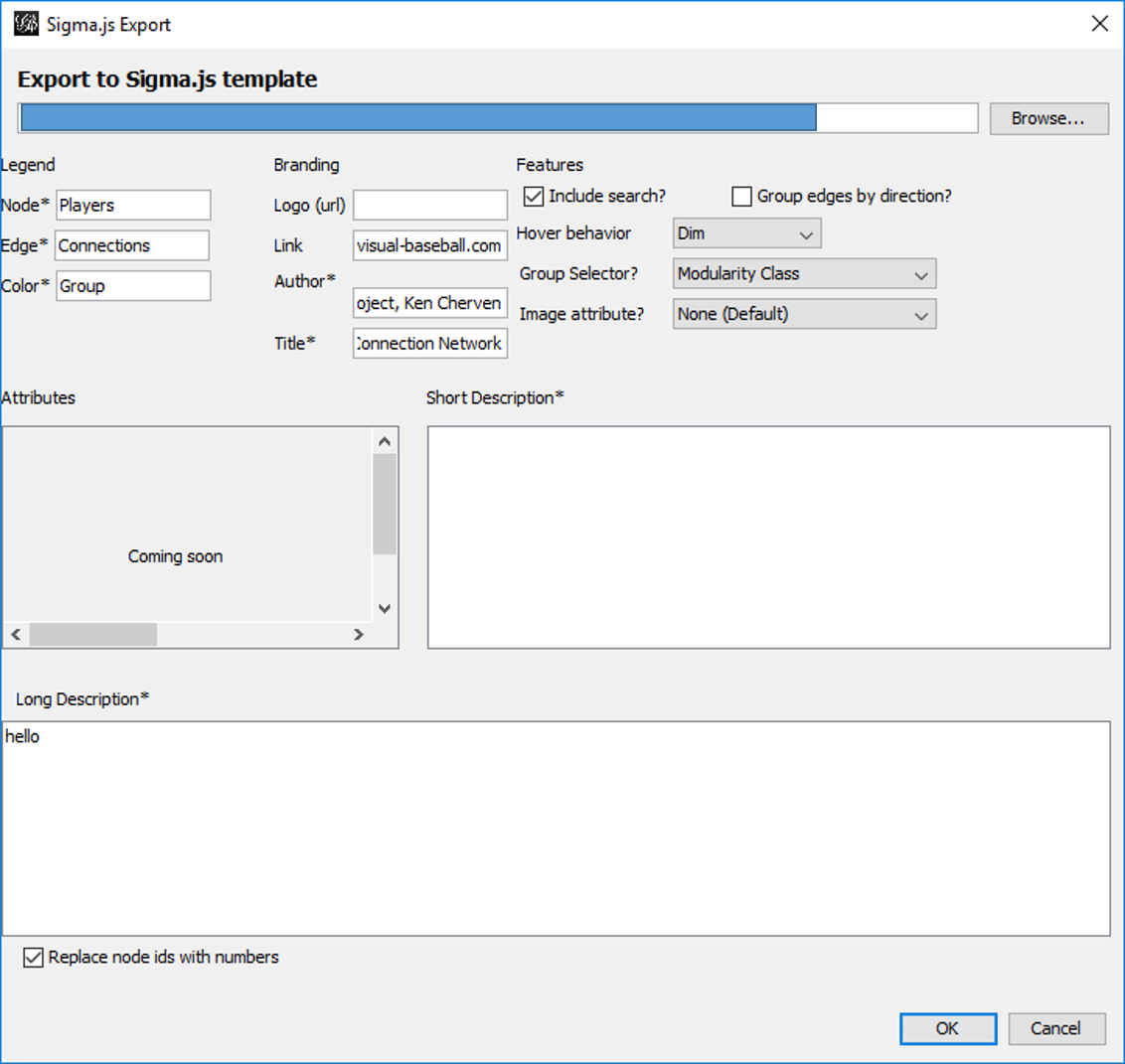
There are a few ways we can create files suitable for web deployment using Gephi. In this case, the choice is to use the simple sigma.js export plugin located at File > Export > Sigma.js template. Selecting this option will provide a set of options similar to this:

This template allows for a modest level of customization, including network descriptions, titles, author info, and other attributes relevant to the network. When all fields are filled to your satisfaction, click on the OK button to save the template. Your network will be saved to the location specified in the blank space at the top of the template window (grayed out in this case). A word of caution is in order here – if you make some custom entries to the template, and then make adjustments to your network, be sure to specify a new location to save the generated files. Otherwise, the initial set will be overwritten. This is especially critical if you have gone behind the scenes to customize colors, fonts, and other display attributes. More on that capability in a moment.

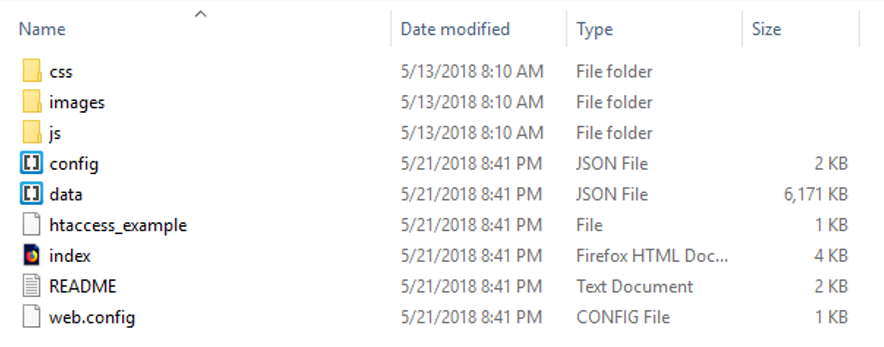
Once the template is complete and the OK button is clicked, a set of folders and files is generated that can then easily be copied to the web. Here’s a view of the created file structure:

These files and sub-folders are all housed within a single folder named ‘network’. If you wish to tinker with your graph in Gephi, rename the network folder to something else prior to exporting a second (or 3rd or 4th time). This will help keep you sane. 🙂

Without going into great detail here, let’s talk about the key files:

  • data.json stores all of your graph data, including positioning attributes, statistics created in Gephi, plus node and edge details
  • config.json contains many of the primary graph settings that can be easily edited for optimal web display. It’s quite easy to go through a trial and error process, since the file is so small. Simply make changes, then refresh your browser to see the result.
  • index.html has a few basic settings relevant to web display, most notably the title information that the browser will use

Within the css folder are .CSS files where you can make changes to many display attributes. This is typically where you will adjust fonts and font sizes, as well as some colors. The js folder has javascript files that can be edited to a certain degree, although caution is recommended if you’re not a javascript guru. Finally, the images folder contains any relevant image files to be used for web display, such as logos.

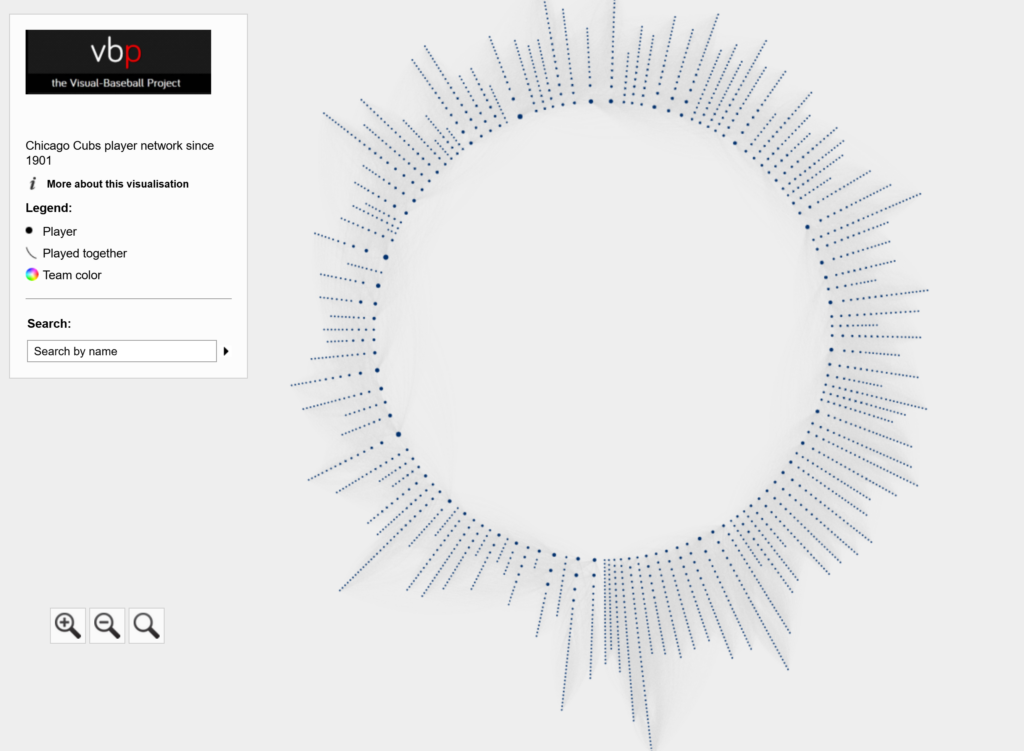
Alright, now that we have had a brief view of the technical details, let’s have a look at the network graph in the browser. Note that this is still a bit experimental at this stage; I’m attempting to customize each graph based on the official team colors or close variations in the color family.

To see some of the interactive functionality, let’s select a specific player. Simply type Ted Williams (the greatest Red Sox batter of all time) in the search box, and view the results:

Now we see only the direct connections (a 1st degree ego network) for Ted Williams (270 degrees in this case), as well as a wealth of statistical information previously calculated in Gephi, seen in the right panel. At the bottom of the panel are hyperlinks where any one of the 270 connections may be clicked, allowing us to view their network. As you can see, sigma.js quickly provides great interactivity for graph viewers.

Even better, we can scroll in to the network at any time:

Hovering on a node generates a pop-up title for that node, as seen for Ted Williams in this instance. We also begin to see the names of other prominent players at this zoom level. Additional zooming will reveal more player titles – a great way to embed information without making the original graph visually chaotic by displaying all titles at every level.

For the current web version of this graph, click here. I’ll try to keep this version active, even if I make improvements to the final network. Once again, thanks for reading!
Updating Player Networks – Part 2

In our previous post, we looked at how to acquire and load our baseball player data into Gephi. In this second installment, the focus will be on creating a player network graph in Gephi, and customizing many settings to deliver a network graph we can export to the web. Player networks are used to detail the connections between all players who are connected to one another in some fashion. In this instance, it is based on players having played for the same team in one or more common seasons. So let’s begin with the process of creating the graph using our raw data from the first installment.

Importing .csv data into Gephi is quite simple – we create individual node and edge files (as we showed in the previous post), and use the Gephi import functions to pull the data in. I always start with the node file, since it will typically have additional information not included in the edges file. After importing the node data, I then import the edge data, which gives us the information to form our initial graph. If we were to start with the edge file, Gephi will create our node data automatically, and we will not have the detail needed for our graph. This approach may work for simple graphs, but not for our current case.

Once both data files have been imported, we can begin thinking about what we want form our graph. Here are several questions we might pose:

  • How will we use color?
  • What sort of layout will be best?
  • Which measures should we calculate?
  • How should we depict node sizes?

In many cases, the answers to these questions come about through trial and error. We may have some ideas going into the process, but invariably, there will be modifications along the way. So be patient, and be willing to experiment as you create network graphs. The graph you will see in this post went through many of these modifications, which I won’t take the time to detail. Instead, this post will detail my final choices, along with some explanations for why these choices were made. So let’s take a walk through the various facets of the visualization.

Layout

While a network will retain the same underlying structure from a statistical point of view (degrees, centrality, eccentricity, etc.) regardless of our layout choices, it is still important to select a layout that will visually represent the underlying patterns in the network. Otherwise, we could just as well deliver a spreadsheet with all of the network statistics. So layout selection is critical, and often involves an iterative process.

For the baseball network graphs I built in 2014, I eventually settled on the ARF layout algorithm, which ran quickly and created an attractive circular network graph display using the player connection data. Alas, there is no ARF algorithm available for Gephi 0.9.2, so I required a different approach for the updates. Ultimately, this led to a 2-step approach using a pair of layout algorithms – OpenOrd followed by Force Atlas 2. OpenOrd is especially effective at creating a quick layout from large datasets, although with far less precision than some other force-directed approaches. Still, it is a great tool for creating a general understanding of the structure of a network very quickly. Force Atlas 2, is the near opposite of OpenOrd – a very precise approach that can be tweaked easily using the various settings in Gephi. It is ideal for putting the finishing touches on what OpenOrd started.

Here are the settings I eventually settled on for Force Atlas 2, after much trial and error:

Force_Atlas_2

Some of the more important things to note here are the Scaling and Gravity settings. I reduced the scaling to 0.5 so the network would display appropriately in a single window without the need for scrolling. The Gravity setting was increased to 2.5 to force nodes slightly toward the center of the display. The LinLog mode and Prevent Overlap options are also selected in order to make this particular graph more visually effective. For other graphs, I have used the Dissuade Hubs option, forcing large nodes to the perimeter of the graph; in this case, that was not an ideal choice.

Color

The use of color is also important within a network graph display. Color can be used to highlight nuances in the data that distinguish one or more nodes relative to another group of nodes. Often we use color to visually represent clusters within the graph, as grouped using the modularity classes statistic or some similar input. In the case of this series of graphs (ultimately one graph per team), I made a decision to use the official team colors to differentiate each graph. Thus my initial graph for the Boston Red Sox would be based on the two primary hex colors for the current team (these colors do change over time for many teams).

Here are the Red Sox primary colors:

c8102e_Color_Hex_-_2018-06-10_09.15.48 0c2340_Color_Hex_-_2018-06-10_09.16.33

After capturing current team colors in a spreadsheet for easy reference, I used the color-hex.com site to select complementary colors for the Red Sox graph. Using complementary colors allows me to differentiate clusters in the graph while remaining true to the original concept of employing team colors for each graph. So instead of a wide range of colors one would normally see in a Gephi output, I was able to input the complementary colors for each group. Thus, one team color could be used for the graph background, while the other color (and it’s complements) could be used for the graph structure (nodes & edges). We’ll share the effect later in this post.

Statistics

Graph statistics are critical to the full understanding of the structure of a network. While we can view a graph and begin to understanding the general structure of a network, the various statistics will aid and reinforce our initial visual comprehension. Gephi provides a nice range of statistical measures to choose from:

  • Eccentricity (the number of steps needed to traverse the network)
  • Centrality – betweenness, eigenvector, closeness, harmonic closeness (various measures of importance of an individual node)
  • Clustering coefficient (to discern cliques in the network)
  • Number of triangles (a friends of friends measure)
  • Modularity Class (clusters)
  • Degrees (the number of connections)

Sizing

Node sizing is another key element of effective graph design. In this case, there were a few options I could pursue for node sizing – the number of seasons played (I used this in the 2014 graphs), one of the various centrality measures we calculated, or the number of degrees (connections) an individual player possesses. After computing each of these statistics, I eventually decided to use the number of degrees as a representation of influence in the graph. Visually, I want to show how many other players a single individual is related to, and using node size is an effective means of doing so.

Summary

Our final graph in Gephi is shown below; the eventual web-based version will differ slightly and include additional functionality, but that’s for another post.

red_sox_20180610

Next Post

My third and final post in this series will address exporting this graph to the web using the sigma.js plugin, and making some additional customization to the web version. Thanks for reading, and see you soon!


Updating Baseball Team Networks – Part 1

A few years back, I used Gephi and sigma.js to create a series of interactive baseball team networks, one for each current MLB franchise. These networks displayed all players through the 2013 season, going all the way back to 1901 for the original American and National League franchises. Now that we have data through the 2017 season, it’s time for an update, not only from a data perspective, but also stylistically. This post will walk through the process of creating one of these networks using Toad for MySQL, Gephi, and sigma.js to create web-based interactive network visualizations.

Here’s a typical network from the 2013 series; the full list of networks can be found here. We’ll use the existing networks as a baseline for the new networks, although a few modifications will be made.

baseball_team_network_2013
a 2013 baseball team network for the Boston Red Sox

Source Data & MySQL Queries

Let’s start our discussion with the source data. Season-level baseball data is available through the seanlahman.com website, in the form of .csv files or Microsoft Access database tables. I use the .csv format, as it can be easily added to existing MySQL databases on the visual-baseball.com server. MySQL also makes it simple to add derived fields through some simple coding. These fields can be utilized later for a variety of activities.

For the purpose of our network graphs, there are a handful of critical fields we want to use. These include the following:

  • playerID, a unique identifier for every player who ever donned a major league uniform
  • player name, which can be used to provide a meaningful reference based on the playerID field
  • yearID, which refers to the season (or seasons) a player suited up for a specific franchise
  • franchID, a unique identifier for each MLB franchise

We also need to do a little manipulation of the source data in our code to deliver our results in the proper form for use in Gephi. This means we need to create two input files – one for nodes, and a second for edges. The nodes will contain information about each player, the number of seasons played for the franchise and the first and last seasons, which may differ from the number of seasons, as players frequently leave a franchise only to return later in their career. Here’s our node code:

SELECT Id, Label, MAX(Size) as Size
FROM
(SELECT bp.playerID AS Id, CONCAT(bp.name, ” “, MIN(bp.yearID), “-“, MAX(bp.yearID)) AS Label, COUNT(bp.yearID) AS Size
FROM BattingPlus bp
WHERE bp.franchID = ‘BOS’ and bp.yearID >= 1901
GROUP BY bp.name

UNION ALL

SELECT pp.playerID AS Id, CONCAT(pp.name, ” “, MIN(pp.yearID), “-“, MAX(pp.yearID)) AS Label, COUNT(pp.yearID) AS Size
FROM BattingPlus pp
WHERE pp.franchID = ‘BOS’ and pp.yearID >= 1901
GROUP BY pp.name)  a
GROUP BY Id
ORDER BY Id;

Here’s the simple interpretation – since we are attempting to display all players for a given franchise, we are executing a UNION ALL statement to combine batters and pitchers into a single result file. We have used the playerID field to create the required Id value for Gephi, while also creating a Label field by combining the player’s name with their first and last years playing for this franchise. Finally, we have created a Size field based on the number of seasons played for the franchise. We can then choose to use this in Gephi to size each node, if we so choose.

We also need to create the edge file for Gephi. In this case, we want to understand how many seasons two players were on the same team. This code is a bit trickier, since we want to show only one connection between two players, since this will be an undirected graph. More on that distinction later. Here’s our edge code:

SELECT b.playerID AS Source, m.playerID  AS Target,  ‘Undirected’ as Type,  ‘ ‘ as Id, ‘ ‘ as Label, count(*) as weight
FROM
(SELECT a.playerID, CONCAT(m.nameFirst, ” “, m.nameLast) name, a.yearID, a.franchID

FROM Appearances a
INNER JOIN Master m
ON a.playerID = m.playerID

WHERE a.franchID = ‘BOS’ and a.yearID >= 1901) b

INNER JOIN Appearances a
ON b.yearID = a.yearID and b.franchID = a.franchID and b.playerID <> a.playerID and a.playerID > b.playerID
INNER JOIN Master m
ON a.playerID = m.playerID

GROUP BY b.playerID, a.playerID
ORDER BY b.playerID

Here we use the Master table to provide player name information, and we also gather the ID information to match the node values. The critical piece in this code is in our join criteria:

INNER JOIN Appearances a
ON b.yearID = a.yearID and b.franchID = a.franchID and b.playerID <> a.playerID and a.playerID > b.playerID

Here we are matching players based on the same season and the same franchise. We then specify that we do not want to connect any player to himself, and that we want only values where the playerID value from our main query is greater than the playerID value from the sub-query. This gives us a single connection between two players, which is what we need for an undirected graph. We then define a Source node (required by Gephi) and a Target node (also required), as well as specifying ‘Undirected’ as the graph type. We leave the ID and Label values empty, and then summarize the number of seasons played together as an edge weight. This value can be used in Gephi to show the strength of a connection between two nodes (e.g.- did they spend one season together, or 10 seasons together?).

After exporting each of these files to a .csv format, we have our source data for Gephi. In Part 2 our focus will shift to creating the network in Gephi.

Player Ego Network Visualization

Ego networks are an interesting concept within the realm of network visualization using graph analysis, as they allow us to easily see direct connections within the network of a particular individual. Using Gephi, we can navigate large networks using this technique, which enables us to filter and view only those connections relevant to our current criteria. All remaining nodes and edges are simply filtered out from a visual perspective, giving a very clean look at individual networks. The ego network can be set to a depth of 1 if the goal is to show only direct connections, or to 2 or even 3 if our goal is to see the so-called “friends of friends” via indirect connections.

My latest venture uses a network of all MLB players between 1901 and 2015, which consists of a somewhat unwieldy mass of nearly 17,000 players with close to 1.2 million connections. Even when we cluster the results using Gephi’s modularity class option, it is still a difficult network to navigate, both from a visual perspective and a resource allocation viewpoint. Here’s a view of the network as a whole:

mlb_players_20161230

While the modularity class coloring helps identify groups of related players, there is an awful lot of small detail that is not easily discerned, and the graph is computationally expensive, often crashing my version of Gephi if I try to do too many things with the full graph. Fortunately, ego networks are a great way to filter the data for greater understanding of some of the details within the network.

Using the ego network option as a filter, I am able to view the individual network of any player in the graph with ease. Here’s a look at my settings for the Miguel Cabrera ego network, and the resulting network, which is now a very manageable 300 nodes and 11k edges:

mlb_ego_filter_20161230

With a little editing in Gephi, such as increasing the size and adjusting the color for the central node, I can easily create a series of ego networks that can later be exported to a JSON format for use with Sigma.js. These can then be turned into interactive web-based networks quite easily. Here, we change the existing node settings so that the Cabrera node stands out in the graph. First, we locate Cabrera’s record in the data worksheet, and then select the node edit menu option:

mlb_edit_node1_20161230

This then takes us to the node properties, where size and color can be edited:

mlb_edit_node2_20161230

If this step causes some overlap in the graph, we can easily run the Noverlap layout algorithm to optimize graph spacing. Here’s a view of the completed Cabrera network after using Sigma.js and tweaking a few of the config settings:

Cabrera_20161130

As of now, there are five of these ego networks available for viewing on the visual-baseball site. They can be found here. I promise more to come in 2017 as time permits. Update – 25 networks as of 1/15/2017.

A Network Graph of MLB All-Stars

With the Major League Baseball All-Star game this week, I was suddenly possessed by an urge to create a network graph of all the players who have been selected for the game from 1933-2015. The goal, as with most of my network graph efforts, was to see where the data took me, and what stories it might tell. Along for the ride was my trusty companion Gephi, version 0.9.1 in this instance. Data for this exercise comes, as it so often does, from the Lahman baseball database, which happens to have a nice table with all the necessary all-star information.

The challenge inherent in this data, as with many temporal datasets, is to create an interesting graph that isn’t entirely driven by the time element, in this case as baseball seasons. Some otherwise excellent layout algorithms tend to turn this sort of data into long, worm-like displays that are not visually appealing. I could just as easily use a timeline if that were the goal of the visualization. So in an effort to balance aesthetics with the underlying data, I finally settled on the radial axis layout in Gephi. With this layout, we have the ability to create multiple axes radiating from the center of the graph, grouped by something meaningful. In this case, that turns out to be the modularity class, a sort of clustering mechanism that groups nodes together based on common or similar characteristics.

After some trial and error, I wound up with 13 distinct classes, a nice manageable number for this type of display. The end result can be interpreted as some sort of exotic, colorful starfish, or perhaps as a multi-colored fireworks display. In any event, I believe it tells an interesting story in a visually appealing manner, and allows for understanding the common threads within each cluster of players. Here’s the complete graph layout:

allstar_graph_base

I’ll spend the rest of the post with some quick analyses of each group, and then point you to the entire graph in interactive form so you can discover your own patterns and learn more about the all-star connections of individual players. I’ll also provide a quick overview for how to read the sidebar output for the graph when you interact with the data.

Our 13 clusters (you can think of them as cohorts) tell us some interesting things about the history of all-star participants. Let’s walk through each of the 13 (numbered 0 through 12) to learn more. The clusters begin with 0 (in green) at the upper left and move counter-clockwise around the graph. Each is rank ordered from small to large radiating out from the center, so the member with the most years as an all-star will be at the tip of each group. That individual will serve as our focal point in each of the following screenshots, followed by a brief overview of other members of the cohort.

First up is our Cohort 0, headlined by Miguel Cabrera, with 10 selections through 2015. Obviously, this would appear to be a cohort of current or recent all-stars based on Cabrera’s appearance. We can easily navigate the graph to see if that’s the case. Who else is prominent in the group? Yadier Molina, Matt Holliday, and Robinson Cano, to name a few, all big name stars for most of their careers. How about at the low end of the spectrum, players with a single all-star selection? Here’s where we find the likes of Billy Butler, R.A. Dickey, and Melky Cabrera. All long-tenured, noteworthy players, but certainly not in the same category as the first group.

cohort_0

Cohort 1 takes us on some time travel, with Johnny Mize as the representative star, also with 10 all-star selections and Hall of Fame membership as well. Joining Mize in the group are Bobby Doerr, Vern Stephens, Joe Gordon, and Bob Feller, all Hall of Famers with the exception of Stephens. At the other end of the cohort, each with one appearance, are Oscar Grimes, Red Barrett, and Nick Etten, among others. Based on the career arcs of the stars in this group, we could characterize it as primarily a 1940s-based cohort, certainly with overlap into the surrounding decades.

cohort_1

Derek Jeter is our icon for Cohort 2, so it figures to be a group that immediately precedes the Cabrera-led Cohort 0. Perhaps the focus here will be on stars from the early 2000s, at the center point of Jeter’s long career. Mariano Rivera, Albert Pujols, and David Ortiz are among the top stars here, confirming the hypothesis that this group is largely post-2000 in nature. Among the lesser knowns with a single selection each are Gil Meche, Joe Crede, and Ryan Ludwick.

cohort_2

Cohort 3 is headed up by the legendary Stan Musial, whose career covered the entirety of the 40s and 50s. Given that Cohort 1 was largely concentrated on players from the 40s, we might anticipate more of a skew towards 1950 and beyond. We’ll see in a moment if that’s true. Next to Musial we have Ted Williams and Warren Spahn, two more whose careers spanned both decades, so perhaps we have players here with greater longevity compared to the Mize cohort. Let’s go a bit deeper, where we find Roy Campanella, Larry Doby, and Robin Roberts, all with career pinnacles primarily in the 50s. So while there will certainly be connections across the two groups, Cohort 3 does appear to span more of the 1950s compared to Cohort 1.

cohort_3

With Cohort 4 we see a very large group fronted by all-time hits leader Pete Rose. So we could be focused on the 1960s or 1970s here; Rod Carew, Reggie Jackson, and Mike Schmidt, Hall of Famers all, are included, so the 1970s would seem to be the dominant theme. Perhaps we shouldn’t be surprised at the size of this group, as expansion in the 1960s afforded more players the opportunity to become an all-star. A few interesting figures can be found at the single game end of the radian – Bob Horner, Kent Hrbek, and Lonnie Smith, all with at least momentary brushes with greatness, but good enough to qualify for just one all-star nod apiece.

cohort_4

Joe DiMaggio is the lead for our next group, joined by the likes of Mel Ott, Bill Dickey, and Joe Medwick. The skew is toward the late 1930s and beyond; many members of this cohort would have had limited all-star game opportunities, as the game originated only in 1933. As proof of this, we find Hall of Famers Heinie Manush, Goose Goslin, and Kiki Cuyler at the low end of the radian, each with just a single all-star credit.

cohort_5

Hall of Famer Al Kaline heads up Cohort 6, so we know we’re in either the 50s or 60s, or more likely, a bit of both decades. Along with Kaline we have Mickey Mantle, Yogi Berra, and Ernie Banks, each of who had multiple appearances covering both decades. At the more modest end of the group we find Rocky Bridges, Bob Cerv, and perhaps surprisingly, the slugger Joe Adcock, each with just a single season as all-stars.

cohort_6

Cohort 7 is our one group that’s difficult to explain. Our graph modularity settings forced a small cohort of just nine players; Hank Aaron with 21 seasons, and eight others with a single season each. Consider this one a bit of a fluke.

cohort_7

The great Willie Mays leads the relatively small Cohort 8, joined by both Brooks and Frank Robinson, as well as Roberto Clemente. This would indicate a cohort of players who began in the 1950s and perhaps peaked in the 60s. Lower down the list this group features lesser known players like Tito Francona, Dick Howser, and Joey Jay, all one season all-stars.

cohort_8

Cohort 9 is a very large group led by Barry Bonds, Ivan “Pudge” Rodriguez, and Ken Griffey. Here we have three stars with illustrious careers launched around 1990 and extending into the new millenium. At the other extreme we find one-timers such as Jay Buhner, Mark Grudzelianek, and Lance Johnson.

cohort_9

Cohort 10 is a mid-sized group headed up by Alex Rodriguez, and featuring Manny Ramirez, John Smoltz, and Scott Rolen. This would appear to be a very similar group (if a few years later) to the prior cohort, and we should expect to find a great number of crossover connections between the two, as they each cover players from similar time periods.

cohort_10

Down to the final two groups! Cohort 11 is led by Cal Ripken, Ozzie Smith, and Roger Clemens, all major impact players in both the 1980s and 90s. This is another group featuring players who were quite talented but dented the all-star ranks just a single time. Among these were outfielders Jesse Barfield and Kevin Bass, and pitcher Teddy Higuera.

cohort_11

With Cohort 12, we see a large group led by 18-time all-star Carl Yastrzemski, supported by Johnny Bench, Tom Seaver, and Harmon Killebrew. These are all players who were at their productive peaks in the late 1960s through mid-1970s, an era where the National League was dominating the annual game. Chuck Hinton, Jerry Lumpe, and Joe Azcue are among those who can claim a single trip to the all-star game as a career highlight.

cohort_12

Quick note on the sidebar – you’ll see a few measures which I won’t go into too deeply here; there are 3 centrality measures (influence within the network), eccentricity (the number of steps to traverse the network, think six degrees of Kevin Bacon), and size, reflecting the number of seasons as an all-star. The key part of the sidebar lies in the listing of all connected players to the one currently selected, with numbers indicating the number of games as co-all-stars. Use these links to navigate through the network quickly. It’s fun!

So that’s it for our brief analysis. Now it’s time to explore for yourself by opening the MLB All-Star Network visualization. Be patient as the data loads; once it has cached the graph should be fairly fast at zooming, panning, and allowing you to explore to your heart’s content.