Tag: Exploratory

Top 20 MLB Teams by Decade – Data Prep

Over the next few months, I’ll be doing a countdown of the top MLB teams (based on WAR162) for each decade from the 1900s through the 2010s. Each team will have a dashboard in Tableau Public, making it easy and fun to navigate through the top 20 teams from each decade. The dashboard design is about to commence, and should be ready to launch around mid-February. Until then, let’s take a tour through the data sources and processes that will ultimately feed each dashboard.

The Data (3 rich sources to work with)

One of my goals is for the dashboards to provide an array of interesting and insightful data – overall team ratings (using WAR162), team and player level stats data (runs scored, hits, batting average, etc.), and game level data that can be used to show patterns within a season. We need multiple data sources that can eventually be joined in Tableau, but each one needs to be processed individually prior to that stage. Here’s a quick overview of each source:

  • The JEFFBAGWELL data from Neil Paine was used extensively in my 2025 book release, The Visual Book of WAR. The book looked primarily at the WAR162 metric at both the individual and team levels, and the same data will be used to select and rank the top 20 teams for each decade. The dashboards will require both team-level summary data plus individual player numbers to provide further context.
  • My next source is season-level data at both the player and team levels, which will be used to provide additional context for the dashboards by displaying traditional baseball statistics such as runs, hits, batting average, OPS, ERA, and more. This data has traditionally come from the Lahman baseball database, now managed by SABR, the Society for American Baseball Research.
  • My third source is Retrosheet gamelogs data, which allows for tracking game-to-game patterns across a season. With this data, the dashboards will be able to show distribution and frequency data for each team, providing further insight into the ups and downs experienced throughout the season.

Fortunately, there are some easy ways to merge these sources (seasons are always the same), and some others that require a bit of work (team codes often differ across the sources). We now move to the next stage, where I use Exploratory to process, refine, update, and manage the data before it gets pushed to Tableau.

Processing the Data (thanks Exploratory!)

Given the differences inherent across the three sources, I have chosen to process each one separately and allow Tableau to join the respective output files. Exploratory makes this process rather straightforward; I simply import each source and then perform the necessary modifications and aggregations needed for Tableau.

Let’s view some examples, beginning with the JEFFBAGWELL (WAR162) source. I previously created a number of steps and calculations last year as I was writing the book. We’ll pick up the data from that point and create some new steps. Let’s first combine the season and team codes into a new field (this will make it easy to filter the various sources:
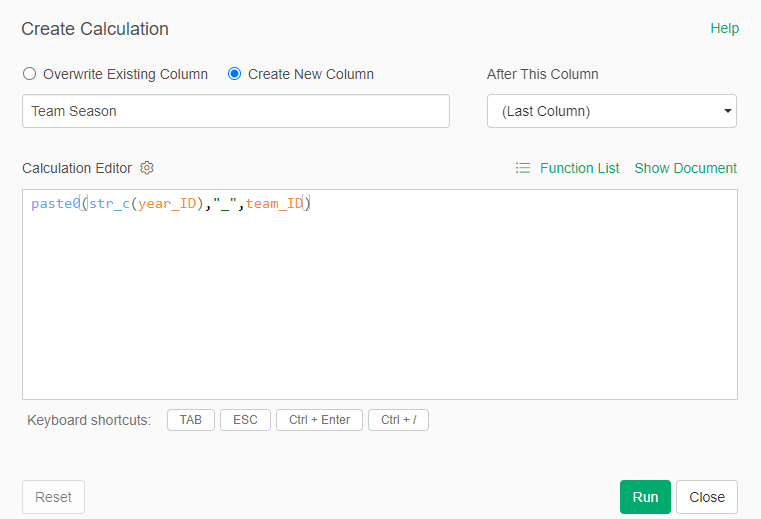
Creating the Team Season field

We now have a Team Season field to work with – this is immediately used to help us get to the top 20 teams for each decade:
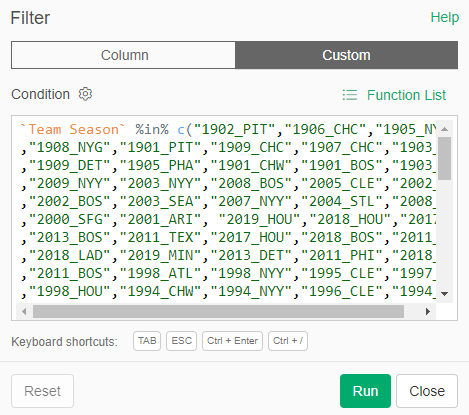
Filtering for the Top 20 teams per decade

All the teams we want to analyze (20 per decade) are now included in our results; the others have been left behind (but not lost) in our data flow. The beauty of this approach lies in its ability to capture all decades; before sending to Tableau we can simply add one more filter that limits the data to a single decade (the 1920s, for example).

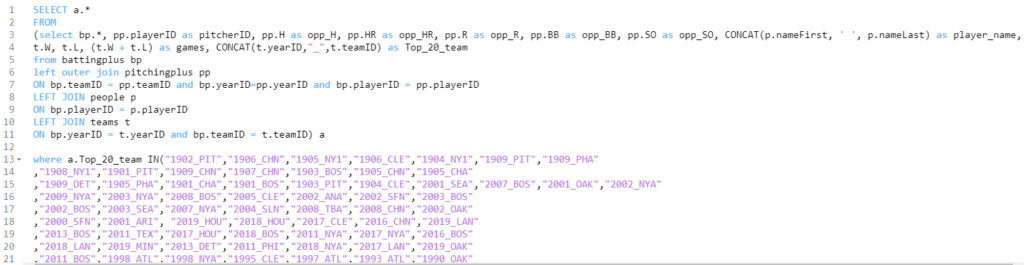
Now let’s move on to the season-level stats data from the Lahman database. Exploratory enables direct connections to multiple databases; my season-level data is stored in a MySQL database, so we’ll create some simple code to pull in the key data fields:
Home ยป Exploratory
Pulling season-level data for the Top 20 teams by decade

Notice the similar logic we just saw with the WAR data – I have created a Top_20_team field that can be used to easily merge the two data sets once we get to Tableau. This data is now in Exploratory, but we soon hit a little speed bump; team codes are not always the same across the two sources. I discovered this when I was falling short of 20 teams per decade, and used Exploratory to make some updates:
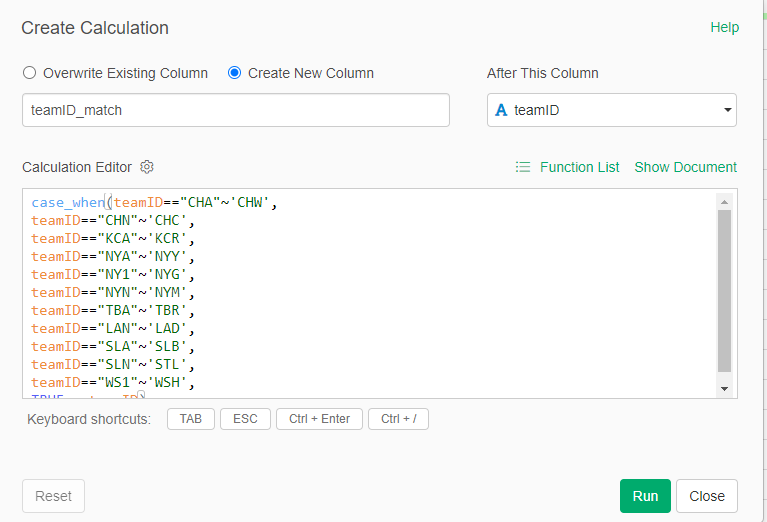
Updating team id codes

We now have updated team IDs to match the other data sources.

My third source proved a bit challenging – I created flags to identify each top 20 team, which seemed like an easy solution. Unfortunately, my solution fell apart when two Top 20 teams played one another (say the 1901 Red Sox vs. the 1901 White Sox). This caused some wonky outcomes at the game level, where one team would lose some game results based on how my code was written. Long story short (after some hair-pulling), I managed to separate the data into two files – one for home games and another for visitor games. Now, I can merge the two data files in Tableau. Problem solved!

Aside from that issue, I used Exploratory to run a lot of calculations, some of which are likely to appear in the final dashboard. For example, calculating runs scored in a game:
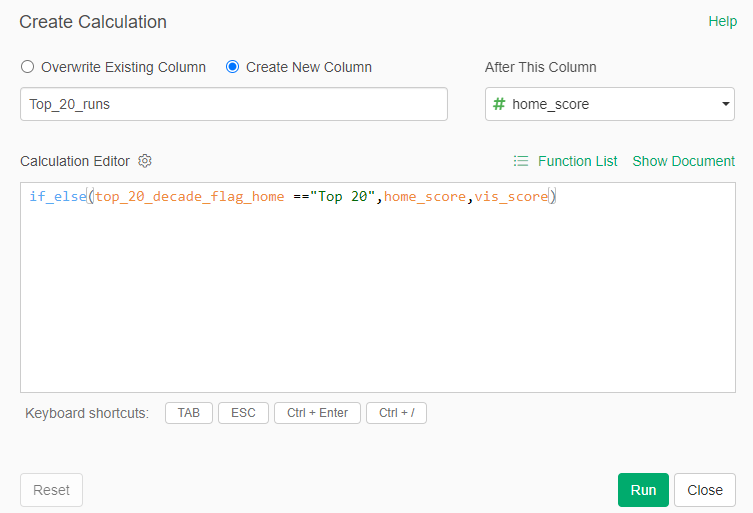
Creating a runs field for Top 20 teams

Here we are determining whether the Top 20 team was hosting a game (home game), and then using the home_score value. Otherwise, if it isn’t a home game, we use the vis_score value to count the runs scored by our top 20 team. We use this type of calculation for many different measures (doubles, triples, walks, etc.), with similar calculations for the opposing team values. The goal is to provide detailed game-level data for use in Tableau.

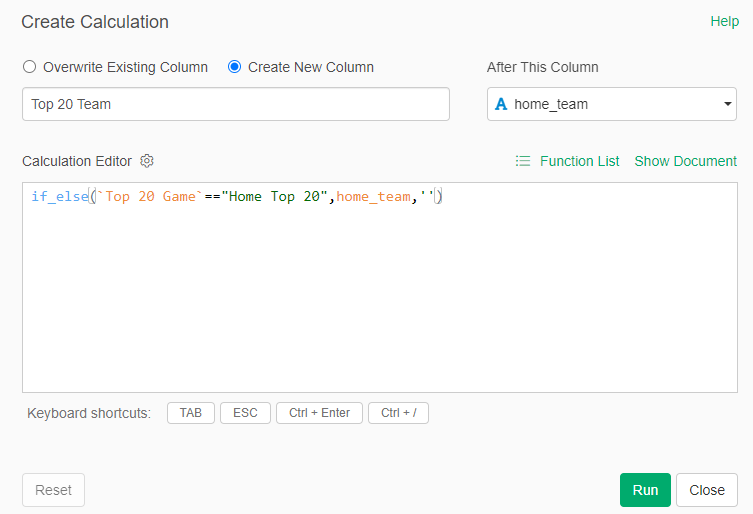
Finally, back to the home team/visiting team approach I touched on a moment ago. In order to capture every game for each team, it was necessary to split the games based on whether a team played at home (home team) or on the road (visiting team). To solve this, I first created a pair of fields to identify home games for a Top 20 team:
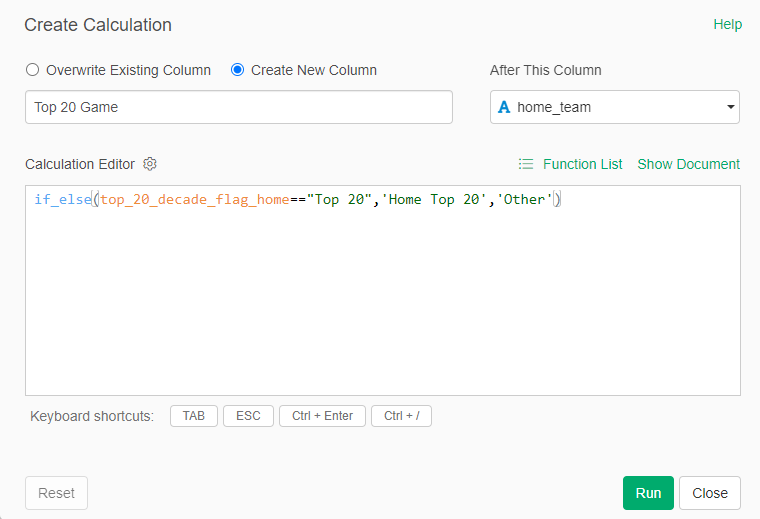
Identifying a Top 20 home game
Identifying a Top 20 home team

I can now capture all home games for each Top 20 team, which can be filtered and pushed to Tableau. The same process was repeated for away games, where the Top 20 team was the visiting team.

There’s a lot more I could cover here in terms of calculations and filters, but I hope you get the general idea. Everything is now ready to create files for Tableau.

The Data Output Files (simple .csv for Tableau ingestion)

Assuming we’ve done everything correctly to this point, exporting the data to .csv files is the easiest part of the process. The key is to make sure we export the data from the appropriate step in Exploratory, where all the field updates, formulas, and filters have been applied. For our team-level WAR file, we apply a decade filter, seen in the bottom right:
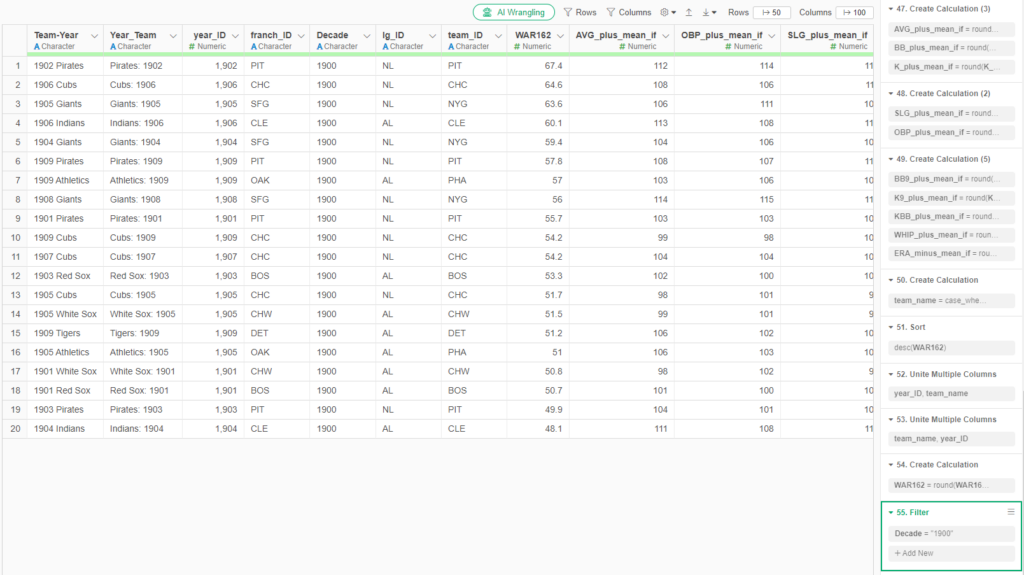
Team WAR summary output

To export the file to a .csv format is quite simple. Click on the export file icon and choose the appropriate output:
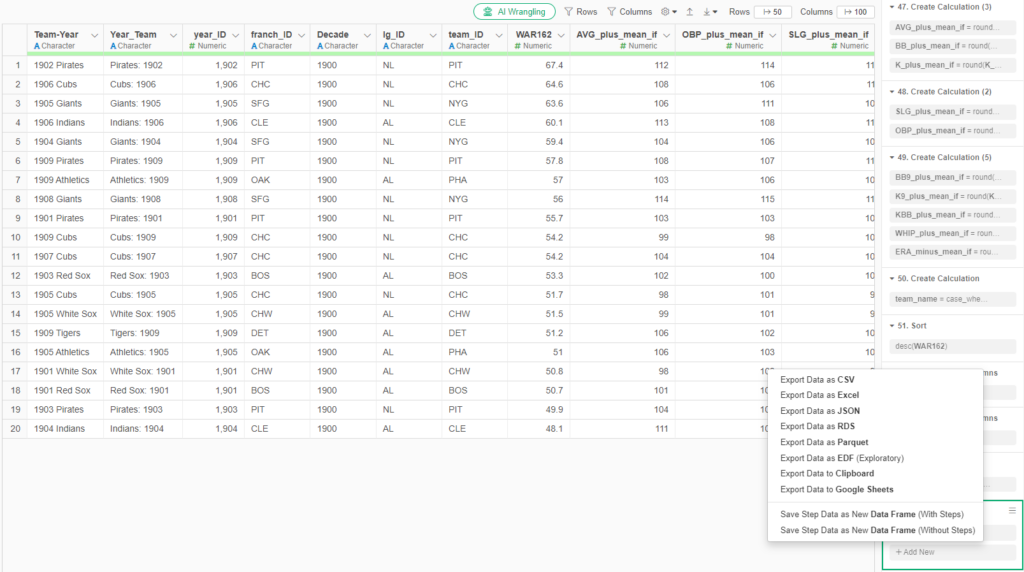
Exporting data from Exploratory

We follow a similar process for each of our remaining outputs, resulting in four distinct files for Tableau. With each of those files created, we’re ready to shift our focus to Tableau.

Merging the Data in Tableau (my old friend)

I spent many years in corporate America using Tableau, and became quite proficient, especially in creating highly interactive dashboards. So I am excited to use it again for this project, and pleased to see some new options in the Tableau Public version.

The first step is to start with the data sources; in this case, the four .csv files we exported from Exploratory. We can use the Data Source tab in Tableau to pull in the data and map out how the four files relate to one another. Here’s what things look like after I set up a data connection and dragged in the files:
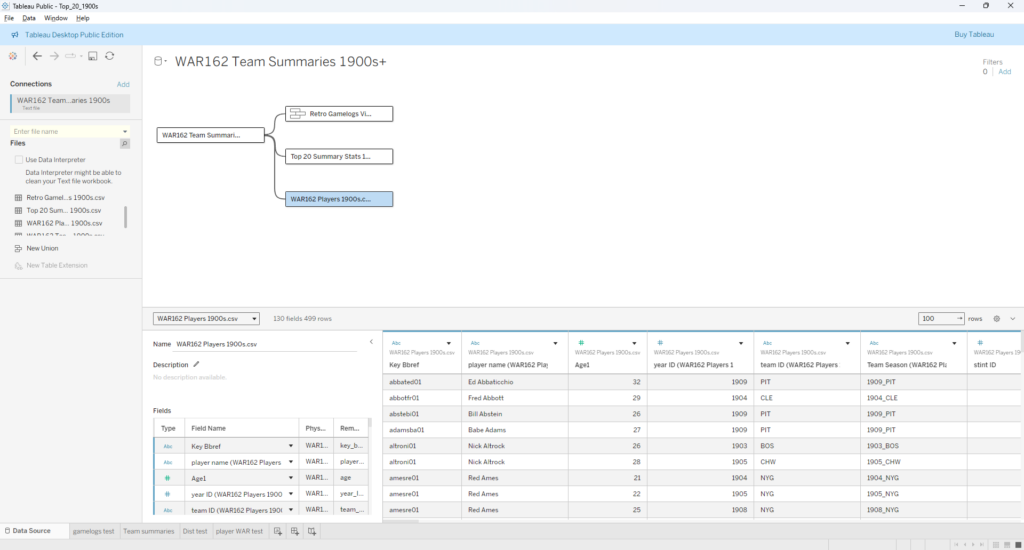
Tableau Data Source window

I elected to use the WAR162 Team Summary file as my base table, and then join the other tables to it. Essentially, that takes us from a small base table with highly summarized information that connects to tables with much greater detail. Before we move on, note that the two Retro Gamelogs files show as a single file, as they have been combined using Tableau’s union capability (since all fields are identical, we can simply combine them). Now we can take a look at the relationships connecting each table:
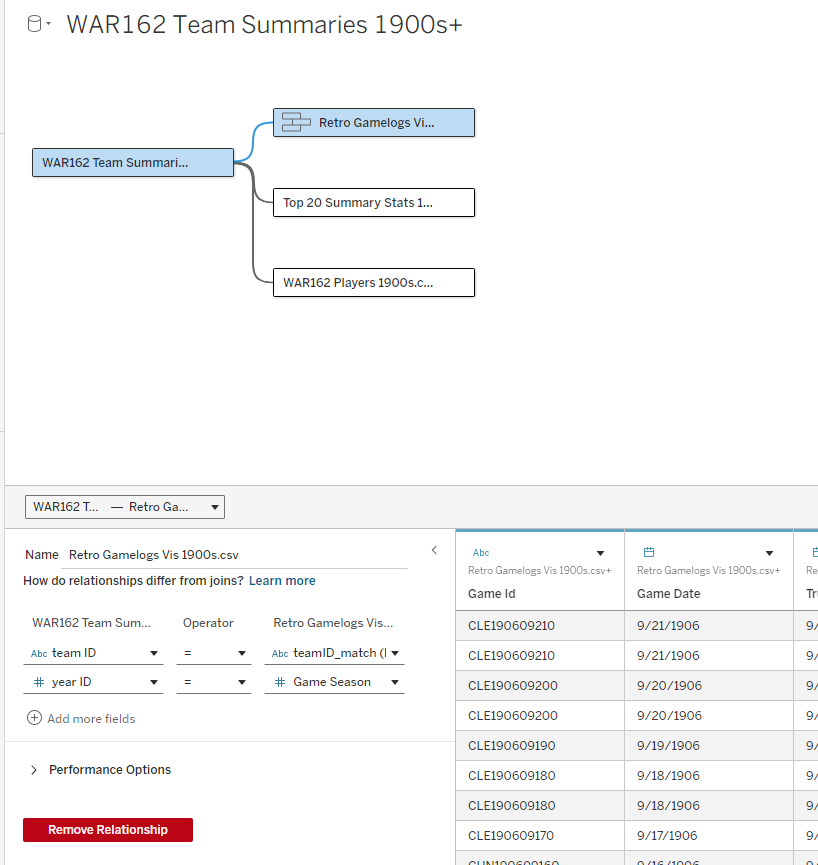
WAR162 Team Summary to RetroGamelogs relationship

Our first relationship connects the base table with gamelogs data, and is based on teamID and yearID (season). Simply put, we can see every game-level record for each of the 20 teams in our 1900s decade, just by joining those two fields.
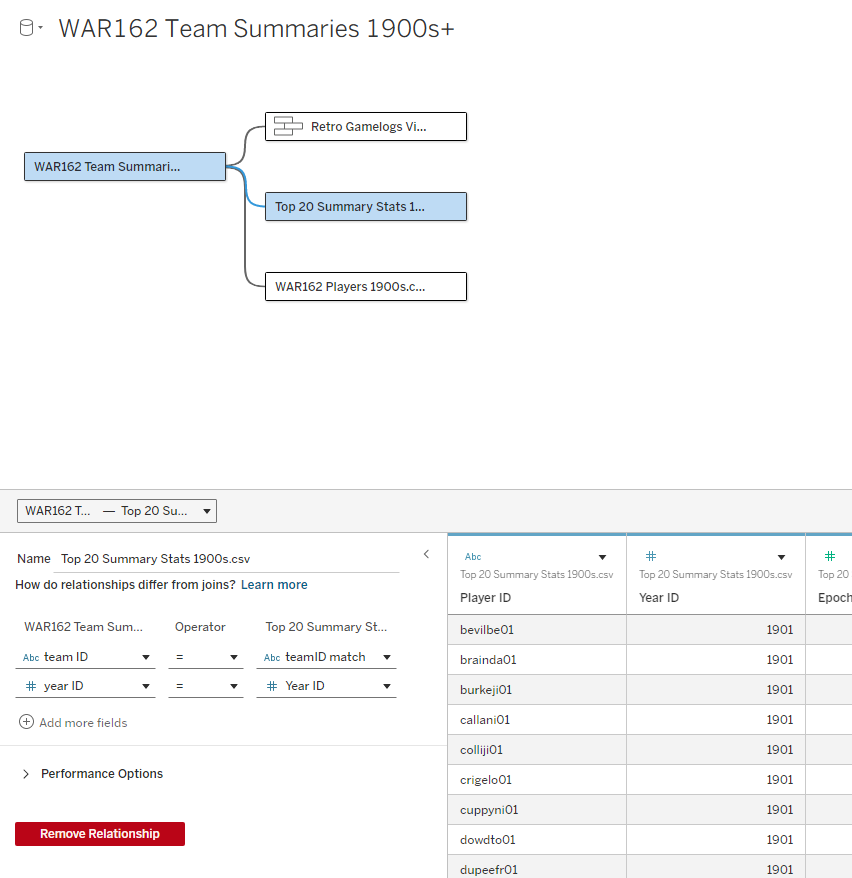
WAR162 Teams to Summary Stats relationship

Next up is our join to the Top 20 Summary Stats table, which contains player-level stats for every season among our Top 20 teams. This includes most of the basic statistics fans are familiar with – runs, hits, doubles, home runs, and so on. Joining on teamID and yearID (season) provides access to all of these numbers.
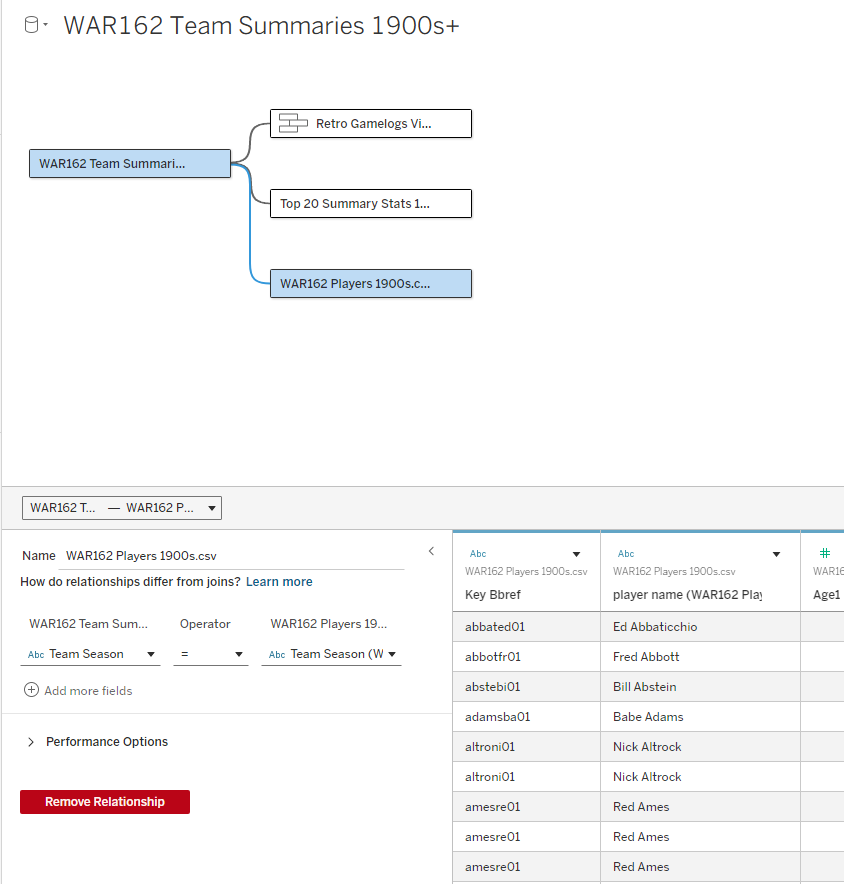
WAR 162 Team to Players Relationship

The final join is between the WAR team and WAR players data. This will allow for showing the top WAR162 performers for each of our Top 20 teams. The dashboards will now be able to reveal exactly why a team is ranked – perhaps there were two or three WAR standouts, or maybe a team has a balanced roster with many above average contributors.

We’ve Got a Lot of Data to Sort Through!

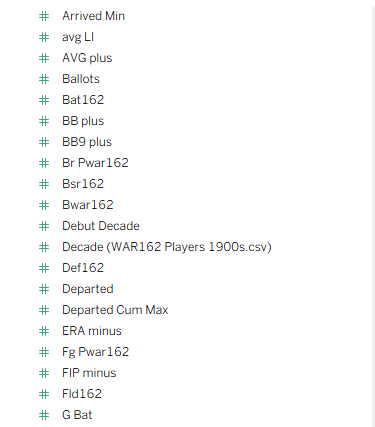
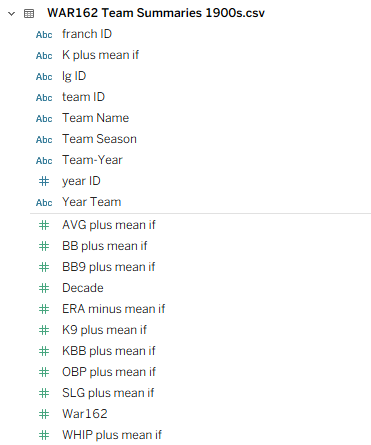
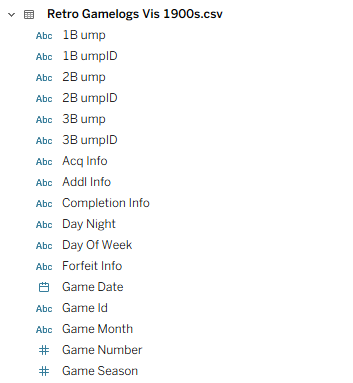
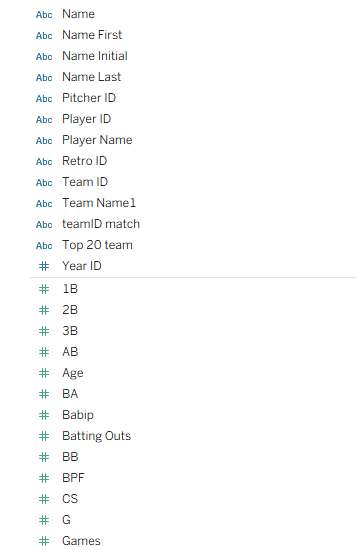
As you may have gathered through these steps, there is now a lot of available data to potentially use. Some of it won’t be impactful, and can be easily left out of the dashboard design, but there will certainly be a competition between the remaining elements. Some of these challenges can be accommodated by building dynamic options where users can filter dashboard views, but we’ll still require a base framework for the design. It won’t be easy – take a look at just a small subset of the data elements:
A handful of data fields…
Followed by more data…
And still more data…
And even more data…

You probably get the idea by now – there’s data everywhere, some of it meaningless, some of it trivial, and a good chunk of it important or essential. The job of a dashboard designer is to discard the first two categories and refine the important or essential data to create a compelling output for users to navigate. The dashboard needs to combine functionality with aesthetics (the world is full of truly ugly dashboards!) that invite users to interact and discover new insights.

What’s Next?

My next post will introduce the dashboard design and walk through how to effectively use it, followed by the rollout of my decade-level countdowns from #20 to #1. I hope you’ll join me on this journey, and thanks for reading!
Updated Pennant Race Charts

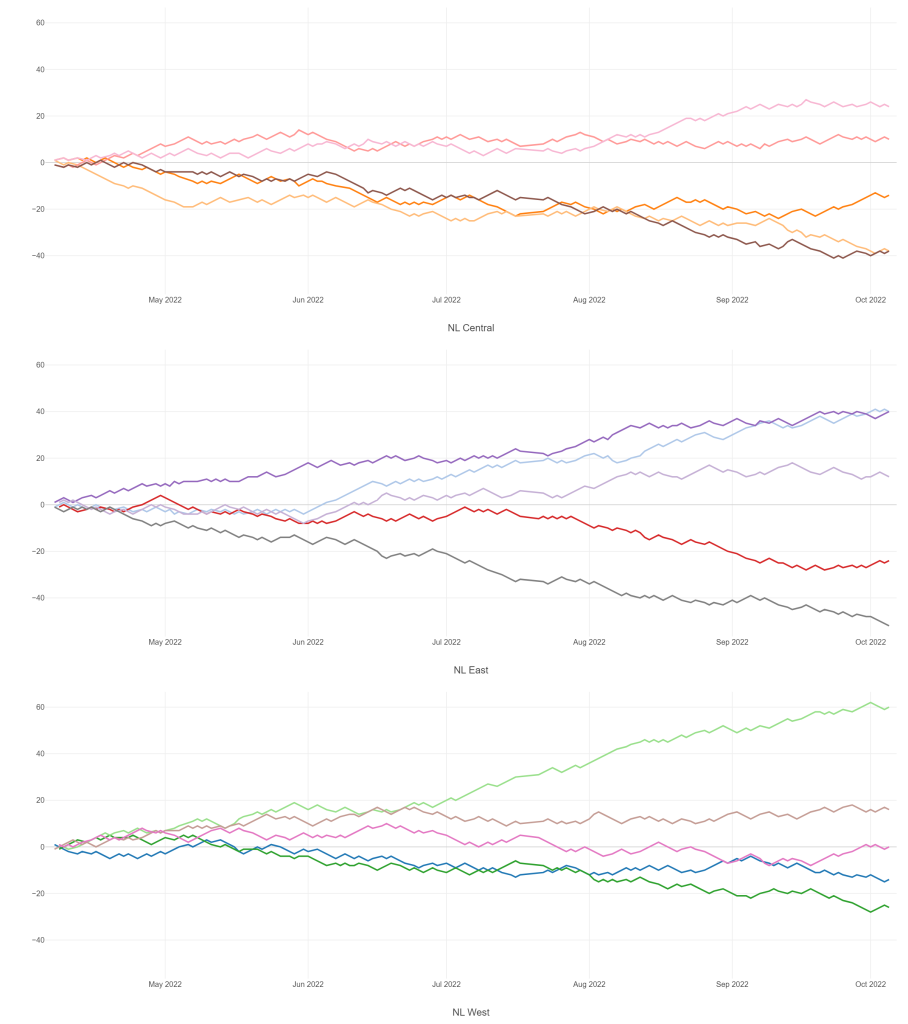
The 2020, 2021, and 2022 MLB pennant race charts using Retrosheet data have been updated on the Exploratory Server: https://exploratory.io/dashboard/kc2519/Pennant-Races-1901-current-aUu5vDT1EW. All seasons from 1901-2022 are now available using the simple parameter selection (just make sure it’s set to the interactive mode).

Here’s a screenshot:

Views of the 2022 National League pennant races by division

Meanwhile, I’m struggling with some JSON output for my traditional version, so no updates there yet.

Interactive Pennant Races in Exploratory

I’ve been creating MLB pennant race charts for years now, covering every season from 1901 through 2019, with 2020, 2021, and 2022 to come soon. These charts have been available on the site in single charts for each season at a league (American or National) and division level (since 1969). This has always worked reasonably well, but I have always yearned for something a bit more interactive, where users could go to one place and enter the season and league they want to view. Finally, courtesy of the Exploratory Server, such a solution is now available.

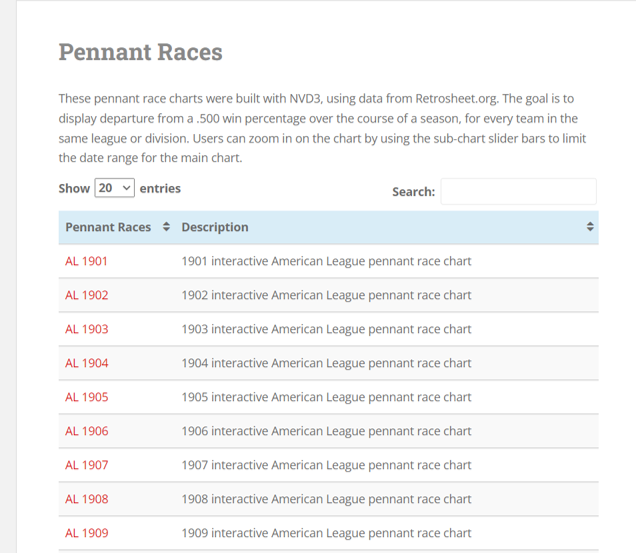
Here’s a glimpse of what I’m talking about – first, the old way of doing things, which I’ll continue to maintain. The process starts with a visit to the pennant races page on this site:

Pennant races chart selection

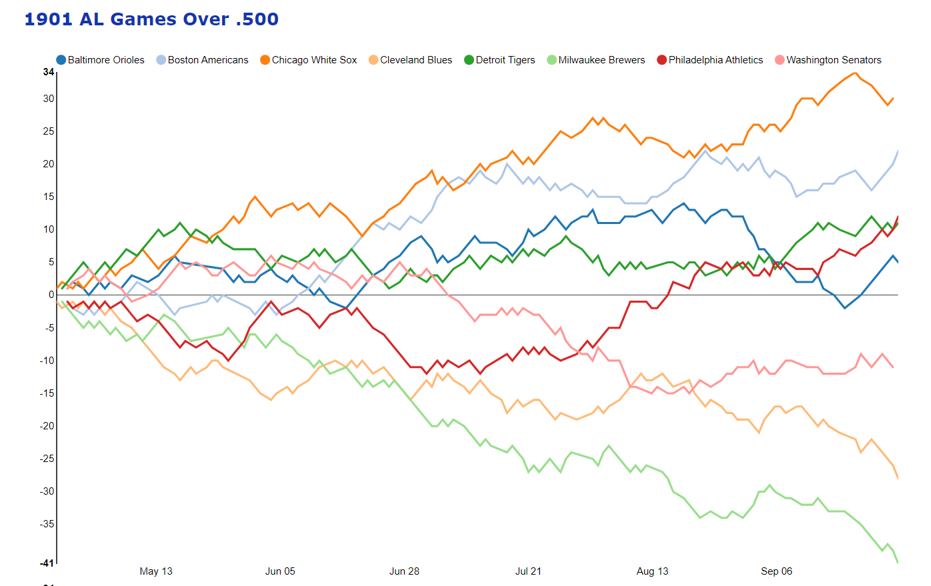
Selecting a specific menu option will display a single pennant race, such as the 1901 American League race shown here:

1901 American League pennant race

These charts work well, and provide some interactivity, but it is strictly one chart per link, so not very efficient.

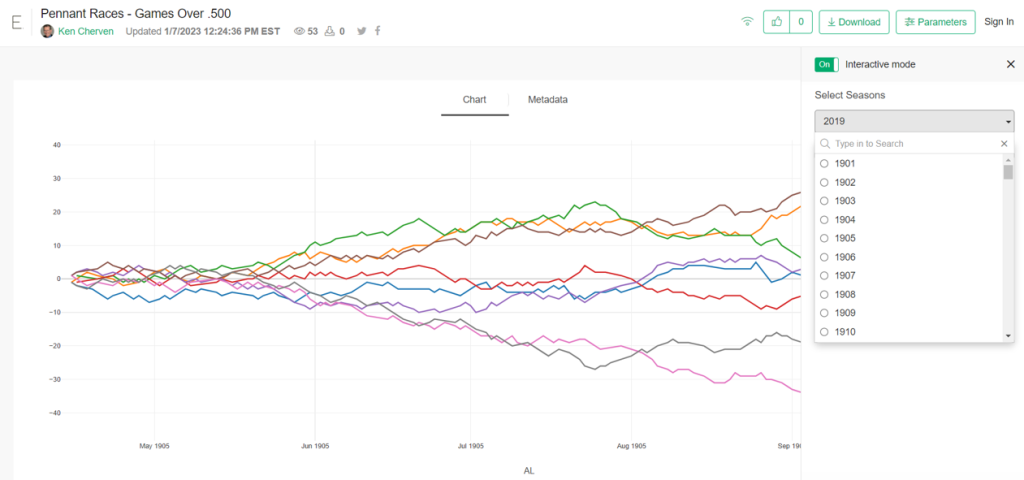
Now, here’s the alternative option using the Exploratory server. Here I can create very similar charts but with a parameter-driven menu enabling users to select a season and a league:

Exploratory pennant race seasons filter
Exploratory pennant race league filter

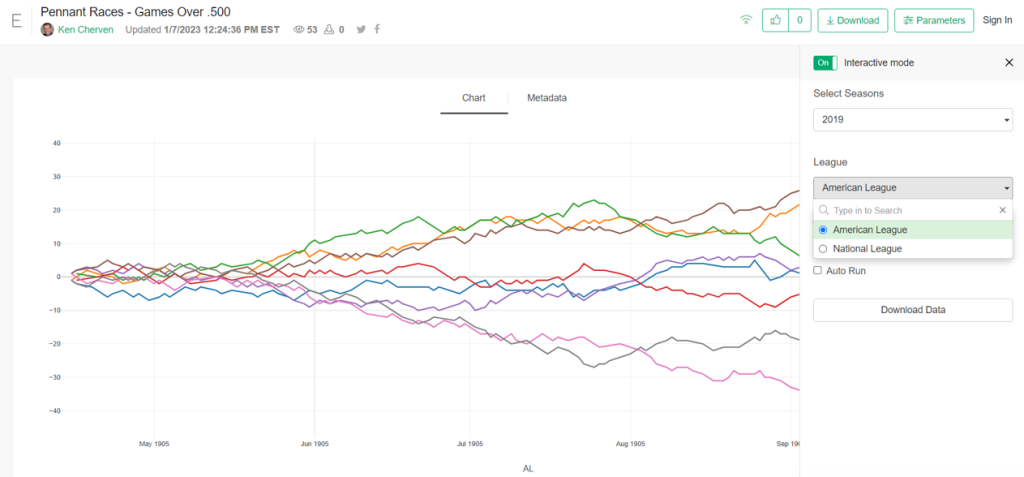
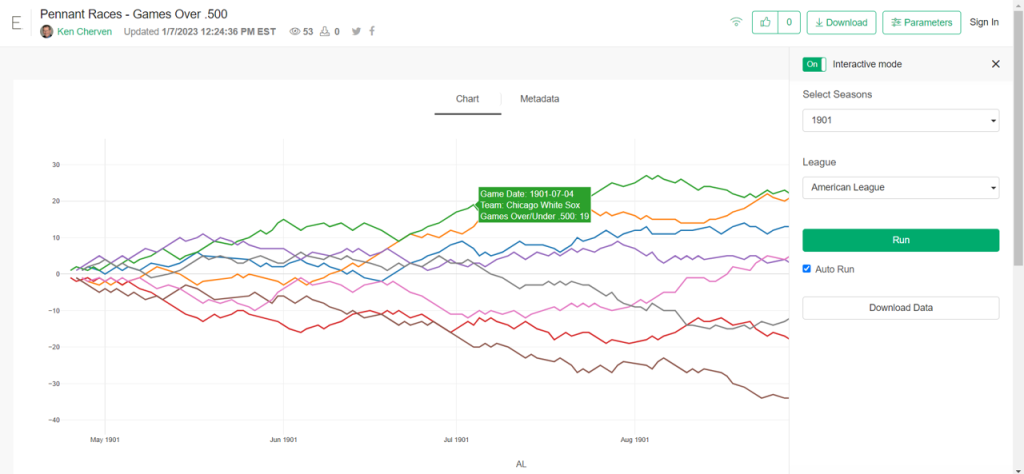
Here’s a case where we select the 1901 season and the American League filters, with the following result:

1901 AL pennant race in Exploratory

The real power in this approach comes with the seasons from 1969-2019, where each league had two and then three divisions. Selecting the 2019 season and the American League filter options will now deliver all three divisional charts on a single page!

You can try this out yourself; just make sure to set the Parameters interactive mode to “On” which will activate the filters; you can control the display as well to show one or more columns. I find that a single column works best for the pennant race charts.

https://exploratory.io/viz/kc2519/Pennant-Races-Games-Over-500-Qvx9ZEF0In

I’ll be working more on this as part of the visualization options going forward; there are other cases where I can use similar functionality. Thanks for reading, and see you soon!

Exploratory DataViz Part 2

Having discussed some of Exploratory’s cool features in a prior post, I thought it would be fun to continue the exploration using JSON data as a starting point. I happen to have a fair amount of JSON on hand, thanks to a series of network graphs produced using Gephi and sigma.js, so why not put it to use with Exploratory and start creating a new dataviz?

If you have previously worked with JSON, you’re no doubt aware that it can be a bit fickle – miss a bracket or brace in one place and the entire file fails to load a visualization. However, knowing that my JSON has been successful in producing network graphs (see here for examples), I figured it was worth a shot with Exploratory.

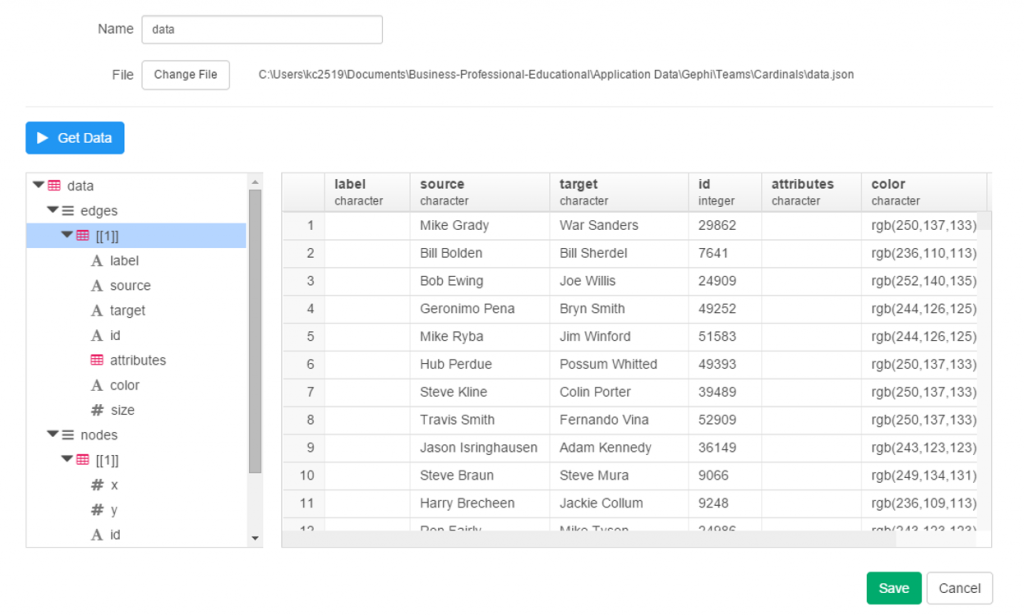
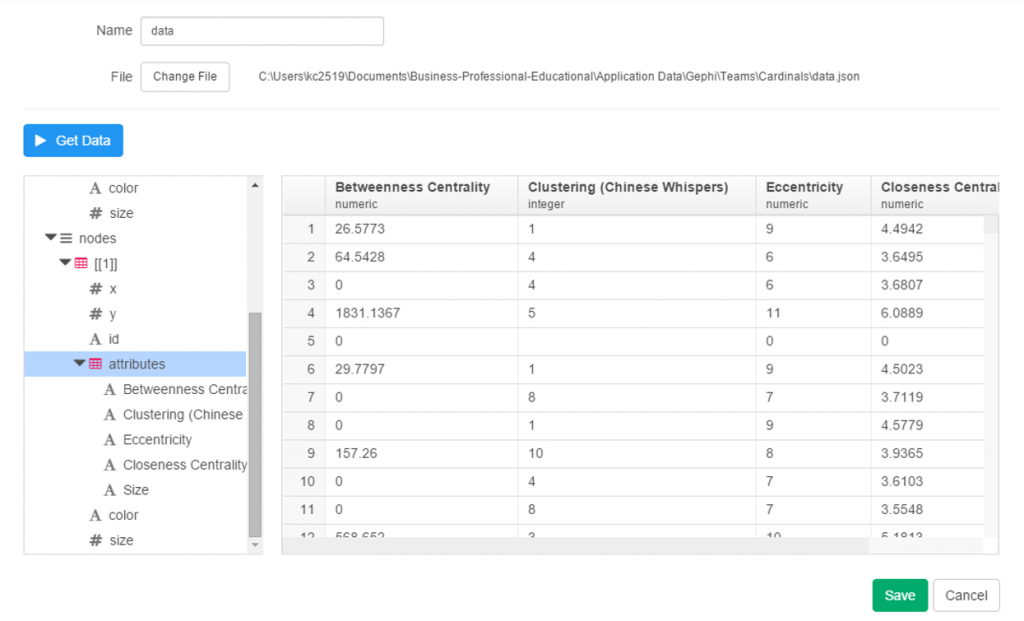
To begin, start with the local import option, selecting the json option, and pointing it to your local file. Give it a name, run the process and cross your fingers! After a few seconds, I’ve got my results, and Exploratory has done a good job categorizing the data:

exploratory_2.1

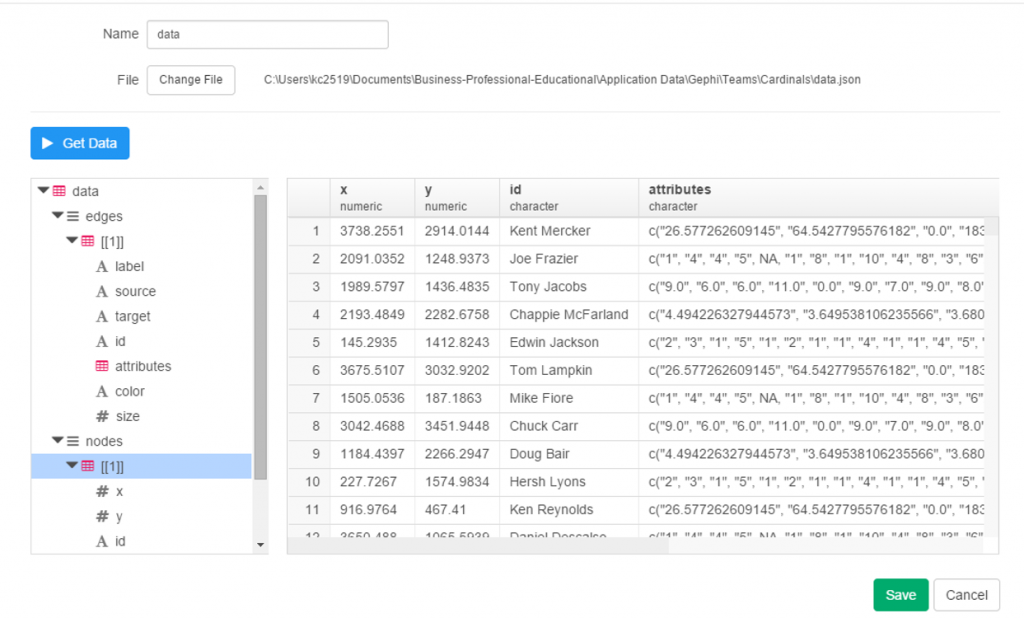
Since this is network data, we have nodes and edges, as well as any additional attributes, such as color or size. Exploratory has picked up those groupings, first the edges, and now the nodes.

exploratory_2.2

Finally, the attribute values:

exploratory_2.3

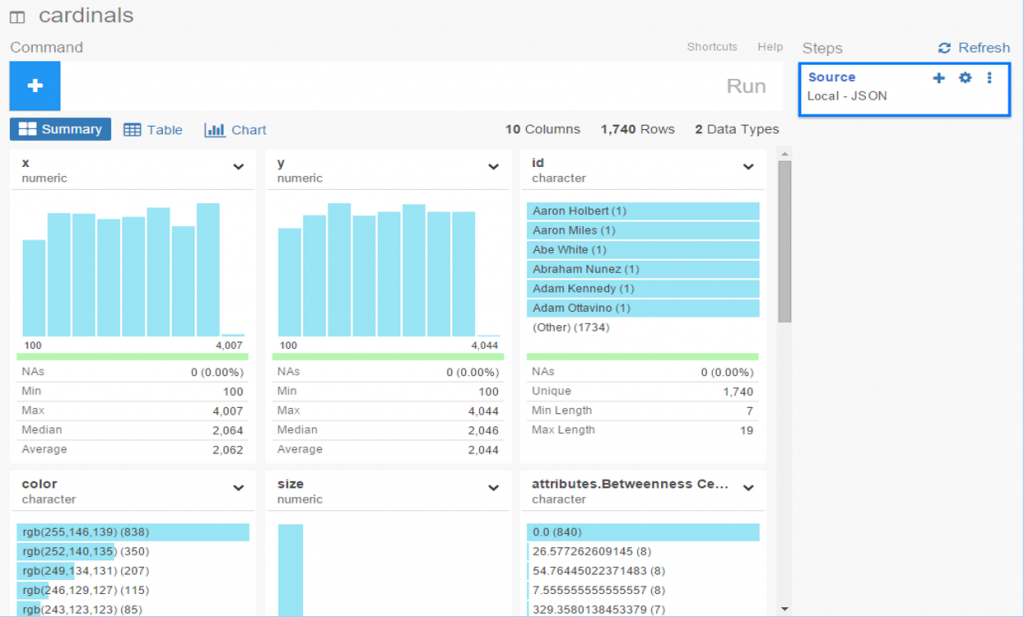
Since we’re satisfied with the import, we can move on to the summary data, which in this case doesn’t make a whole lot of sense. No matter, let’s see what can be done with some charts and analysis.

exploratory_2.4

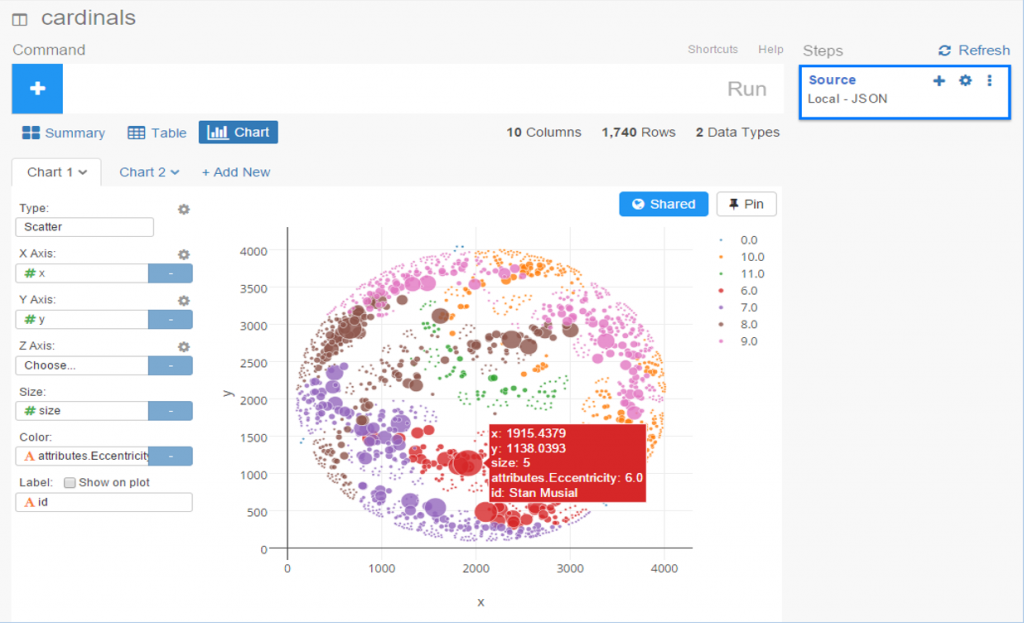
To start with, we have x and y values associated with each node, which sounds like a perfect candidate for a scatter plot. We add the x value to the x-axis (how convenient was that!), the y value to the y-axis, node size as the Size attribute, and finally the Eccentricity attribute for color. FWIW, eccentricity is not a measure of flakiness, but rather the distance between the most remote points in a graph. This is where the six degrees of separation (or Kevin Bacon, take your pick) concept comes into play; an eccentricity value of 6 equates to 6 degrees of distance. Here’s our result:

exploratory_2.5

Not bad, eh? We can also hover over each node to see who it is (after adding Id to the Label field):

exploratory_2.6

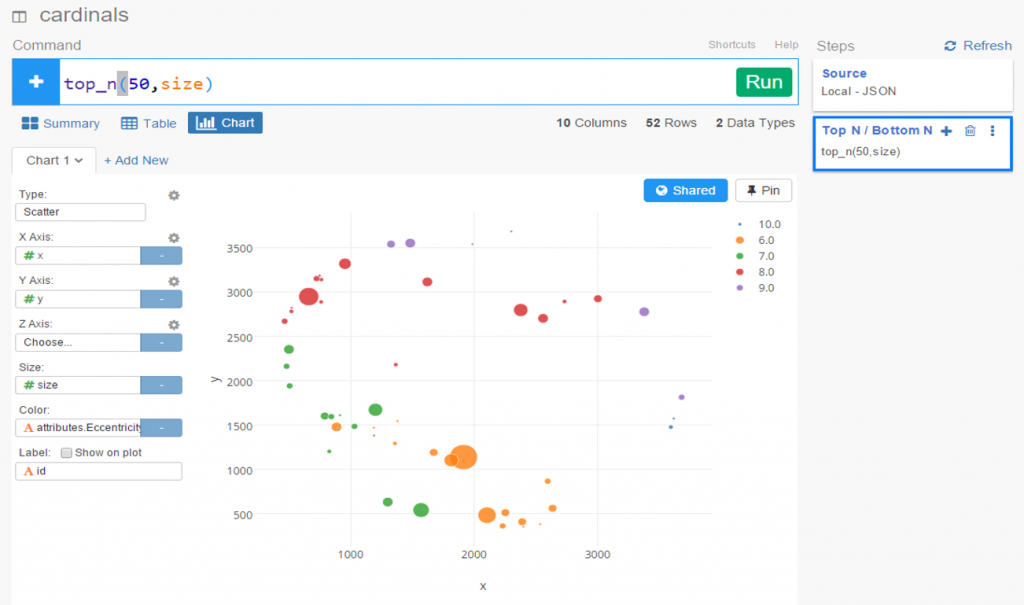
We still have a lot of activity in a limited space, so now let’s use a simple filter (see the command line at top) to grab the top 50 values, and see the results:

exploratory_2.7

Now let’s create a new branch to explore further. I would like to sort my dataset using the Betweenness Centrality attribute, but there’s one problem – it’s a character value at the moment, so it doesn’t sort numerically. No matter, we can fix that easily using the Mutate command to convert the variable type. This can be seen in the right margin, where Exploratory conveniently stores all actions. Now we can sort our values in descending order to understand who is most influential in the network (at least by this measure). FYI – Betweenness Centrality tells us which nodes others must pass through most frequently to connect elsewhere within the network. Typically, but not always, it is someone centrally located within a network; sometimes it may be a less influential character (Pedro Borbon in this case) who connects more distant groups to one another.

exploratory_2.9

So there you have it, another quick walk-through with Exploratory. Before I sign off, here’s the live scatter plot you can play with via the Exploratory server. Be sure to use the simple zoom features to traverse the chart!

Open Source Data Viz: Exploratory

It’s absolutely a great time to be alive and involved in data viz, courtesy of the wealth of exceptional open source projects. Several recent open source discoveries are currently on my radar, and worthy of further exploration. Over the next few weeks I’ll examine a few of these options, using baseball data (of course) to illustrate the possibilities within each application. Specifically, we’ll take a look at Trelliscope, bokeh, rbokeh, and Exploratory, and provide some insight and examples into how each of these projects function. This post will focus on Exploratory, an exciting new tool from Kan Nishida.

Exploratory is another R-based application that leverages a multitude of R capabilities while providing its own intuitive interface. While still in beta testing, Exploratory appears to have a very bright future as a powerful visualization tool that allows non-coders to tap into the enormous power of R. The ability to harness a considerable portion of the R language through Exploratory’s GUI is a powerful option for those (like me) with limited R experience and expertise.

Exploratory has a very clean, intuitive interface that may feel a little unusual to long-time R users accustomed to multiple panes and workspaces. Yet beneath the surface, it possesses considerable power, as we’ll see in this tutorial. To start our process, we’ll need a data frame, a familiar object for R users. Let’s begin by examining our data frame options.

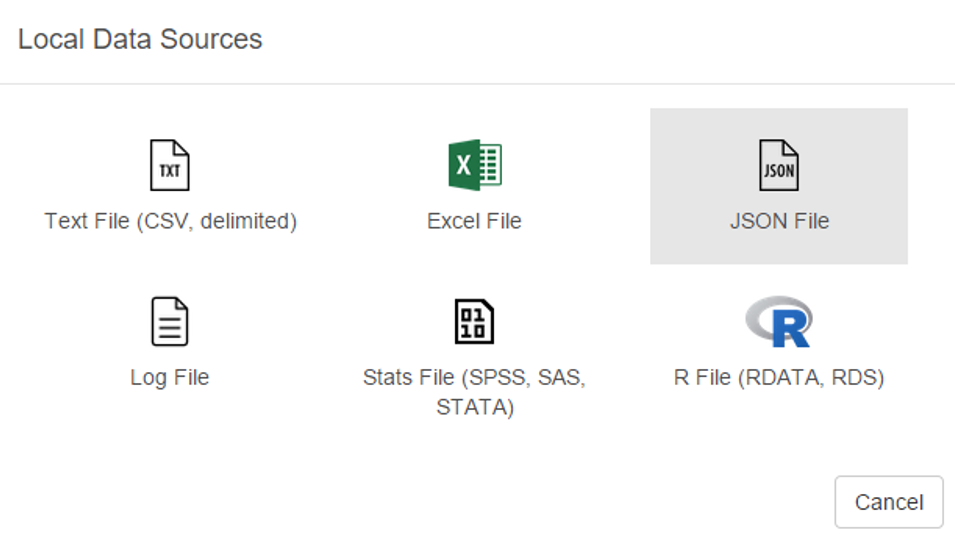
First up, we can load a local source file in a variety of formats:
exploratory_local
Some of the usual suspects are here – text and Excel files, but we also have the ability to load json data as well as some of the more prominent statistical formats including SAS and SPSS data. Very cool. We’ll come back to this later.

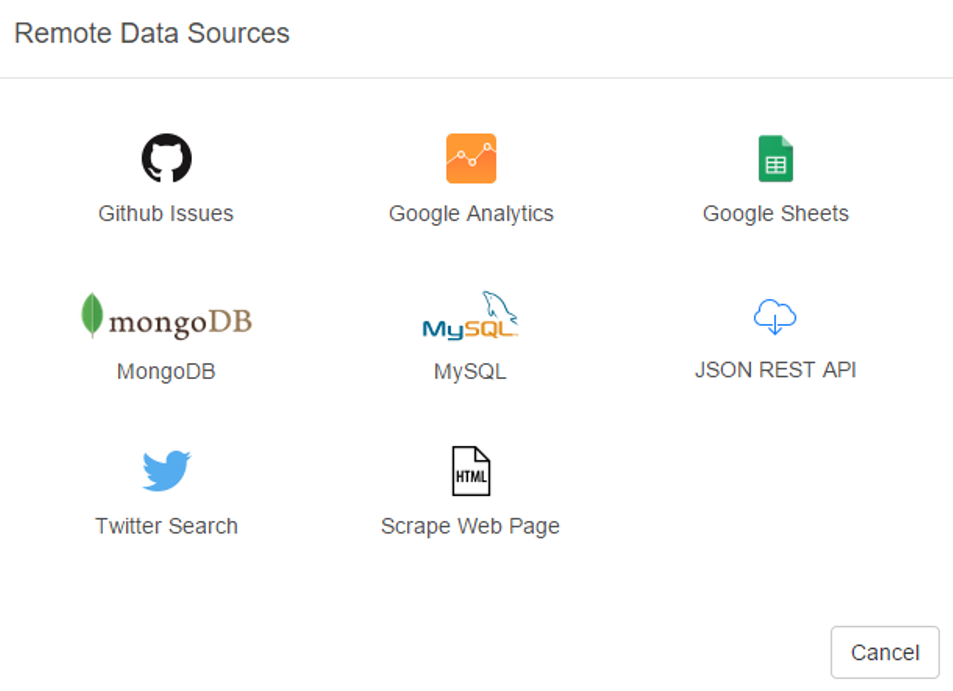
Now let’s see the remote options:

exploratory_rscript

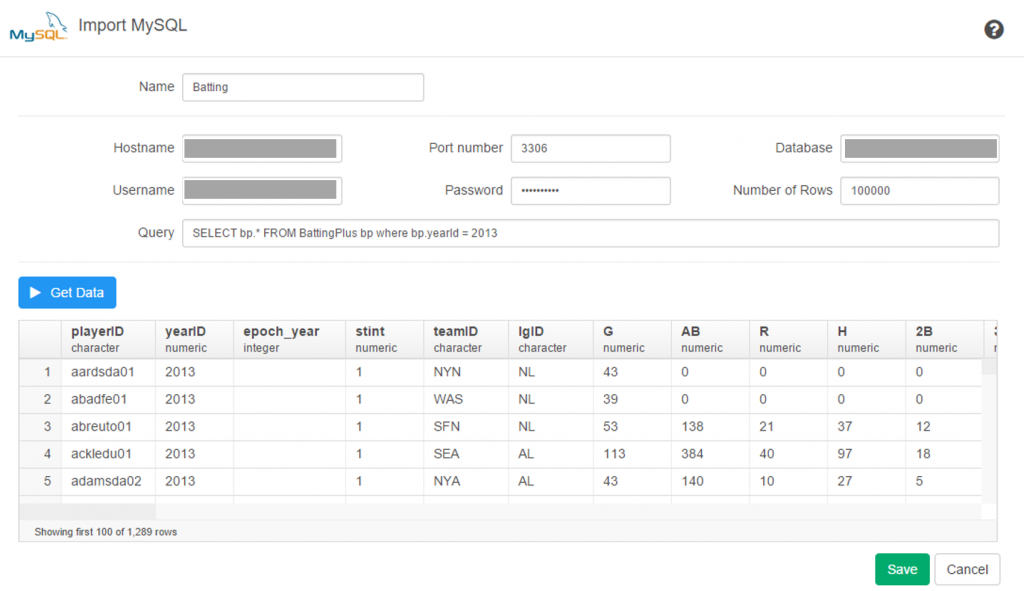
Great! Not only can we gain direct access to MySQL databases (a huge plus for me), Exploratory also provides access to a diverse range of option including Twitter search, MongoDB, and web scraping. We’re going to look at some specific examples later, but for now, here’s a glimpse of the MySQL data import window:

exploratory_mysql

As with the entire app, the design is clean and intuitive. In a bit, I’m going to load details into this window so we can test the MySQL functionality.

A third import option exists in the availability to access any existing R scripts you may have previously created:

exploratory_rscript

I’m not going to spend a lot of time here, due to the fact that I don’t have a lot (any?) of personal scripts. However, for seasoned R coders, this seems like a great feature.

Now let’s walk through some of Exploratory’s capabilities using a MySQL connection. The MySQL setup is really easy – just fill in your database connection parameters and you’re good to go. Here’s what it looks like for this example, with a few fields grayed out for security reasons.

MySQL connection

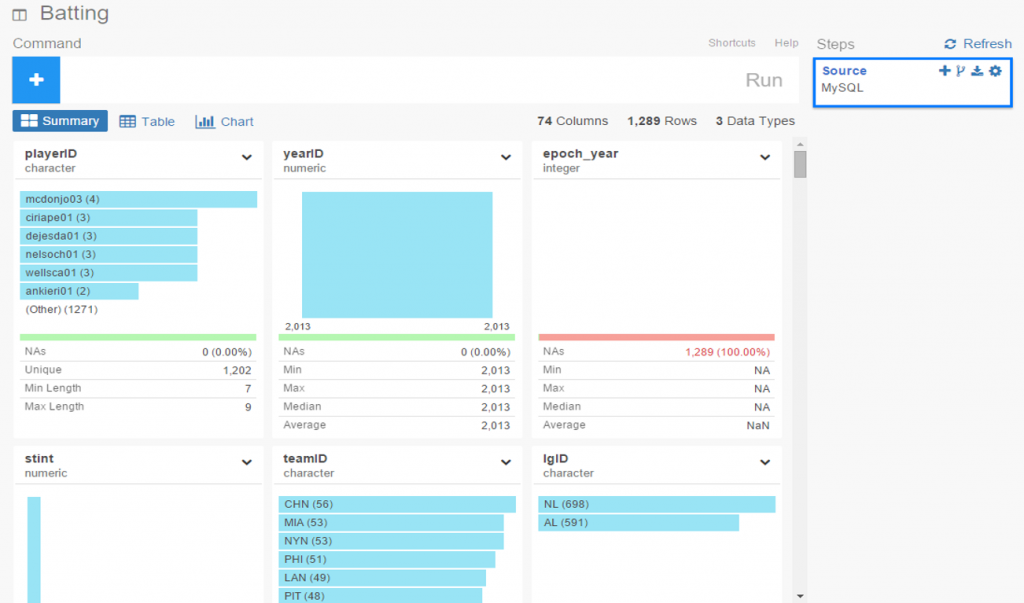
Once the connection is established, Exploratory will display the initial rows in the dataset. If we click the Run button, our data is pulled into a Summary view, where every variable in the data is summarized. This is a great way to see if our data looks as expected, and allows us to determine if the correct variable type (integer, date, etc.) is associated with each field.

exploratory_summary

If everything looks good, we can move on to the Table option, which will resemble the MySQL view we just saw. No surprises here:

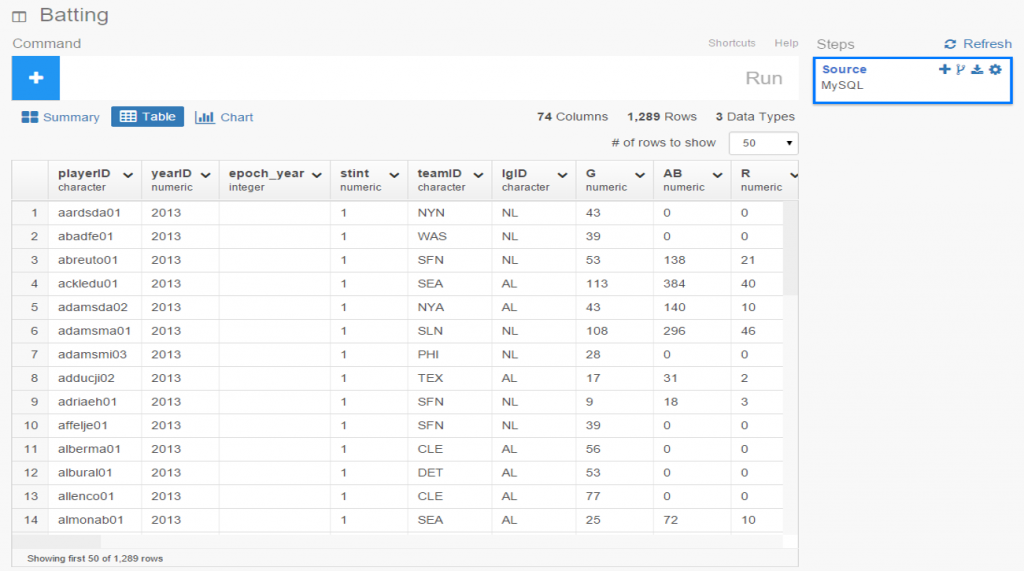
exploratory_table

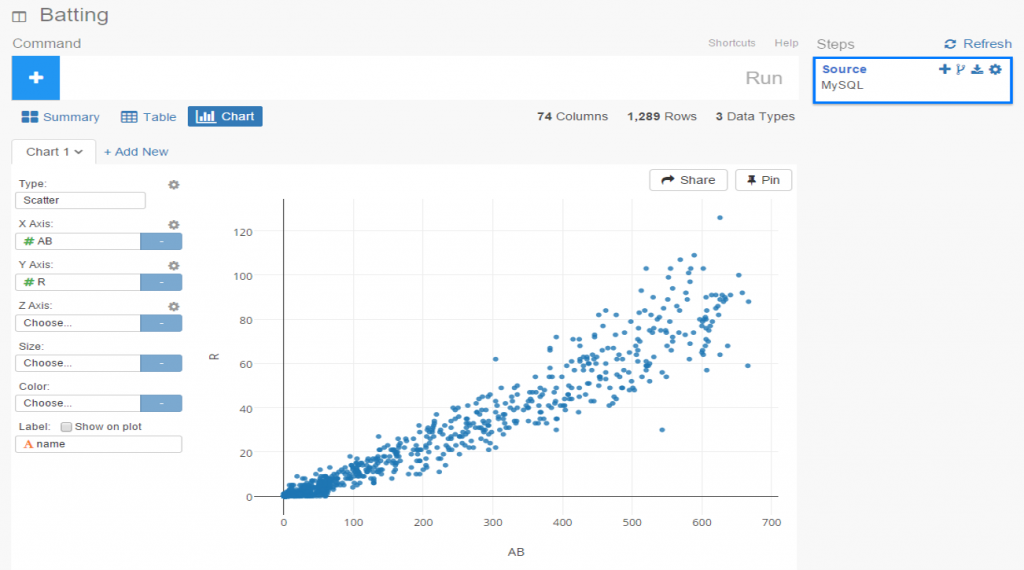
If we’re satisfied so far, then it’s time to move on to the fun aspects of Exploratory. For me, this starts with viewing data using the Charts selection. As of this writing, there are 10 chart options (two are actually mapping selections for geo data) including bars, scatter plots, box plots, heatmaps, and more. For me, this is a real strength of Exploratory; the ease with which we can see plots of our data is great! Here I’ve chosen a couple stat fields (at bats (AB) and runs (R)) to illustrate the scatter plot functionality.

exploratory_chart

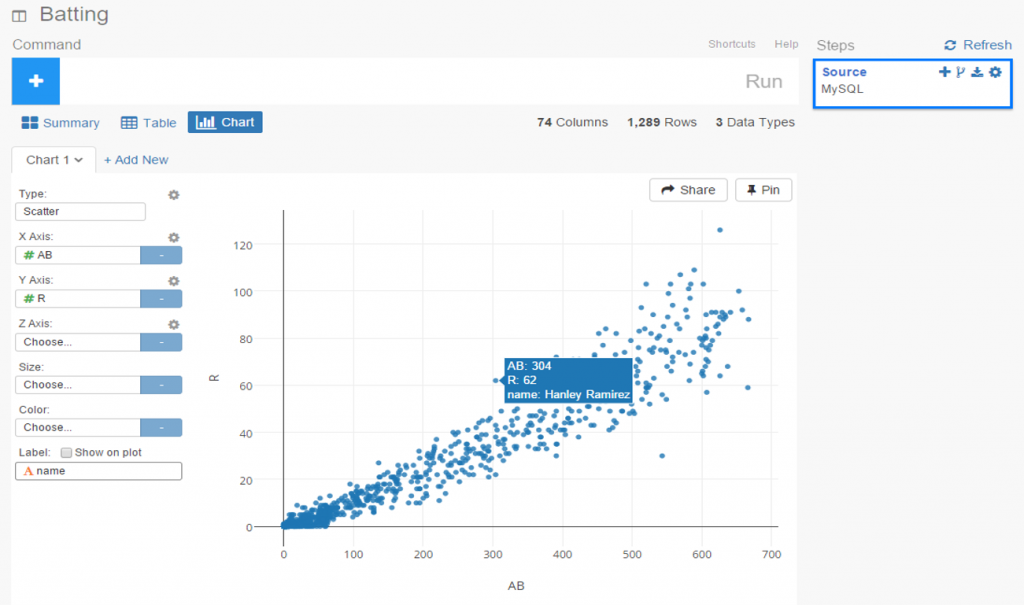
The charts are clean and attractive, and provide some additional options. For scatter plots, labels can be added via a simple check box. This permits me to add hover labels, as seen below:

exploratory_chart_label

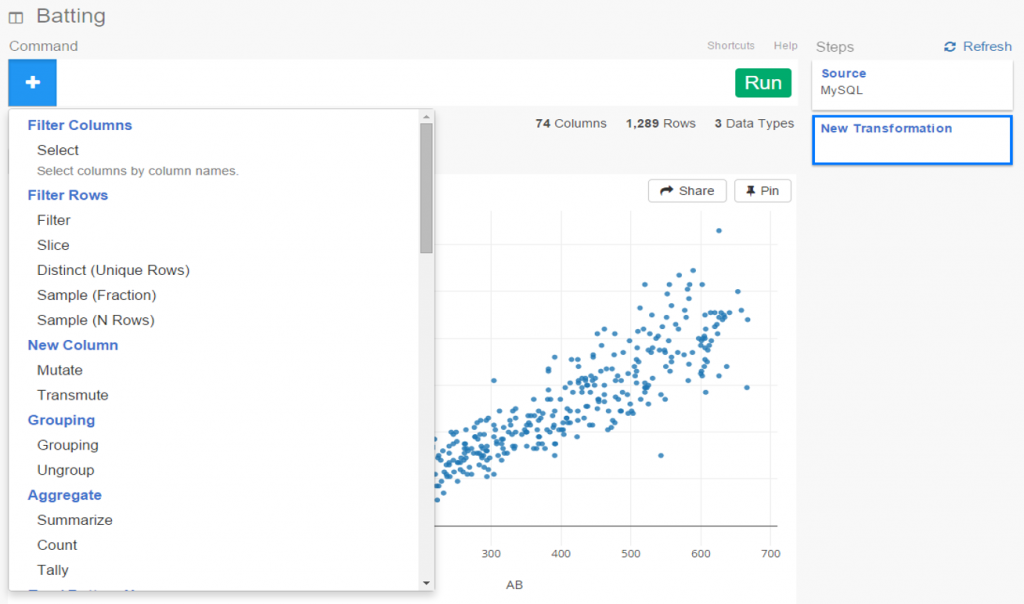
Pretty nice so far, don’t you think? But as the old commercials used to say ‘wait, there’s more’. The considerable power of R lies beneath the surface, enabling statistical testing, filtering, data manipulation, and so much more. Here’s a glimpse of just a handful of available options for working with your data:

exploratory_options

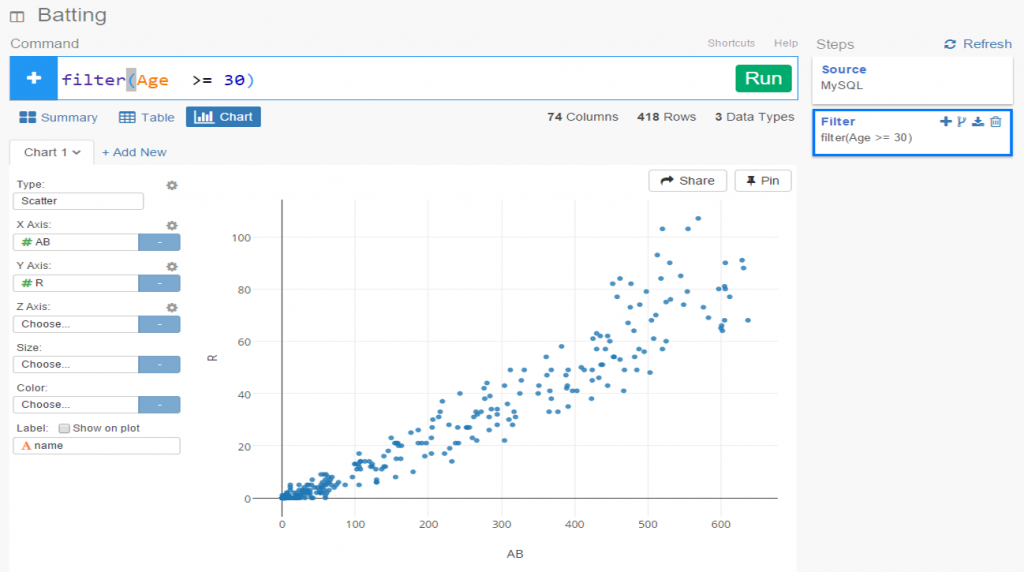
Let’s select a filter option, where we’ll reduce the data to look only at players age 30 or greater. One of the other great aspects of Exploratory is it’s exposition of R code. We can use the built in menu commands while viewing the actual R code. For experienced R users, the functions can be entered directly in a text box, and for us less experienced coders, we can learn on the fly by seeing the output.

exploratory_filter

Now we see the same scatter plot populated with players 30 and older.

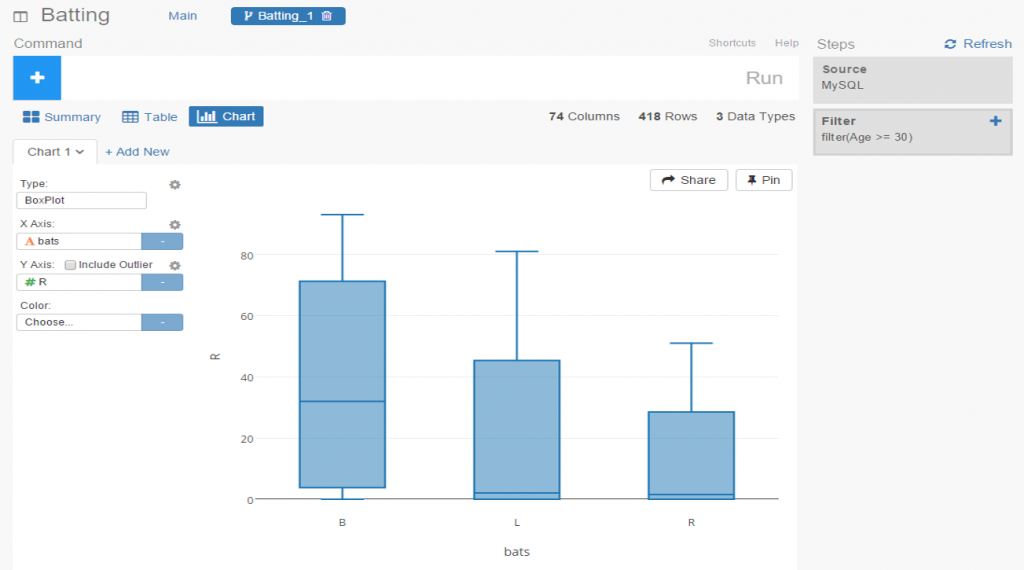
Another great feature is the ability to create branches within a project. This facilitates going down multiple paths within one workspace, rather than having to retrace our steps or rerun charts each time something changes. All we need to do is click the branch button, and a new tab is created for us. Very simple and intuitive, as is virtually everything in Exploratory.

exploratory_branch

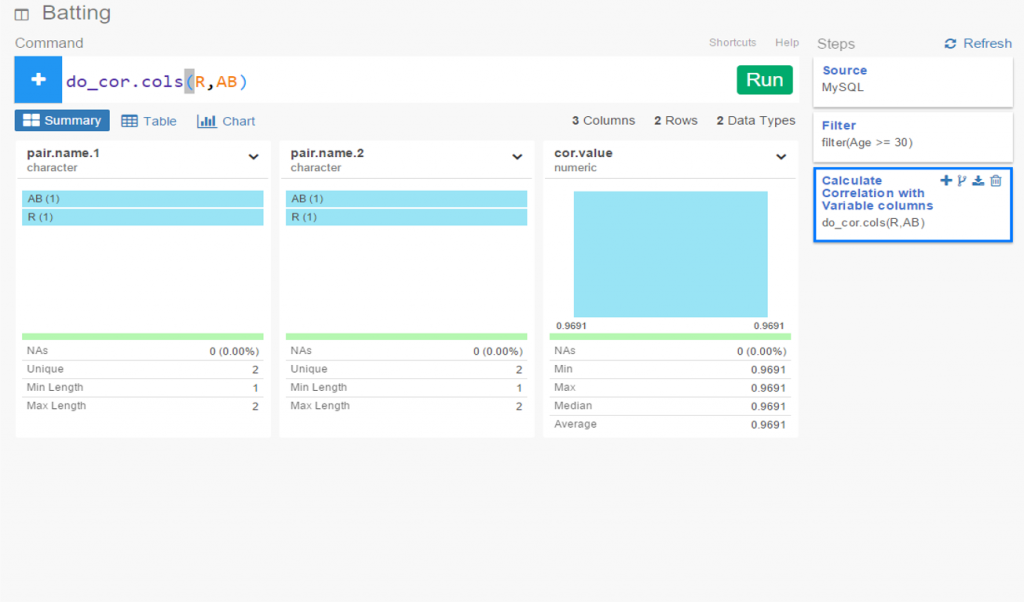
In this instance, we’ve elected to run a correlation on the chart variables in our main flow, while we create a new box plot in our branch.

exploratory_branch_chart

I’ve been very impressed thus far with Exploratory, and have barely scratched the surface. My next step will be to create some real content that can be shared in a post or via some new visualizations on the site. I love the ease of accessing my data via MySQL, and immediately having the ability to create plots, filter data, and run statistical explorations.